Quests, points and rewards
Invite people to complete tasks, review their submissions and offer rewards for points.
Use Loyalty → Quests when you want people to do something, such as share an announcement, and submit their work for review. A quest defines the tasks, who can take part and when submissions are open. You can offer points for completing tasks if points are enabled; a quest does not have to award points.
Use Loyalty → Rewards to offer items people can claim with points. Decide what people can earn and what those points can buy before inviting them. A task submission still needs review, and a reward claim still needs fulfilment by your team. Creating a quest or reward does not complete those later steps.
Ambassadors are one use case. You can give an ambassador member group access to a quest. For personal ticket referral links, follow Set up an ambassador sale separately. A quest is not a ticket sale.
Before you start
You need permission to manage the organisation. Prepare clear task instructions, the evidence you will accept and who will review submissions. If you plan to offer rewards, agree the points costs, stock and collection or delivery arrangements.
The screenshots show unsaved setup forms and separate saved examples. Counts in saved examples illustrate access, submitted work and recorded claims; they do not confirm approval or fulfilment.
Create a group for member access
If participation should depend on membership, set up the group in Audience first. Use that same group in the quest's Access settings. A membership alone does not create a quest, referral sale or points reward.
Quests
A quest turns an activity into tasks people can complete and submit for review. Use one when you need clear instructions, an audience and a place to review the work. For example, you could ask a member group to share your announcement and submit a screenshot.
Points are optional. The organiser reviews the submission; submitting work is separate from approval and any points credit.
Set up your first quest
- Open Loyalty → Quests. Select New, or Create quest if the list is empty.
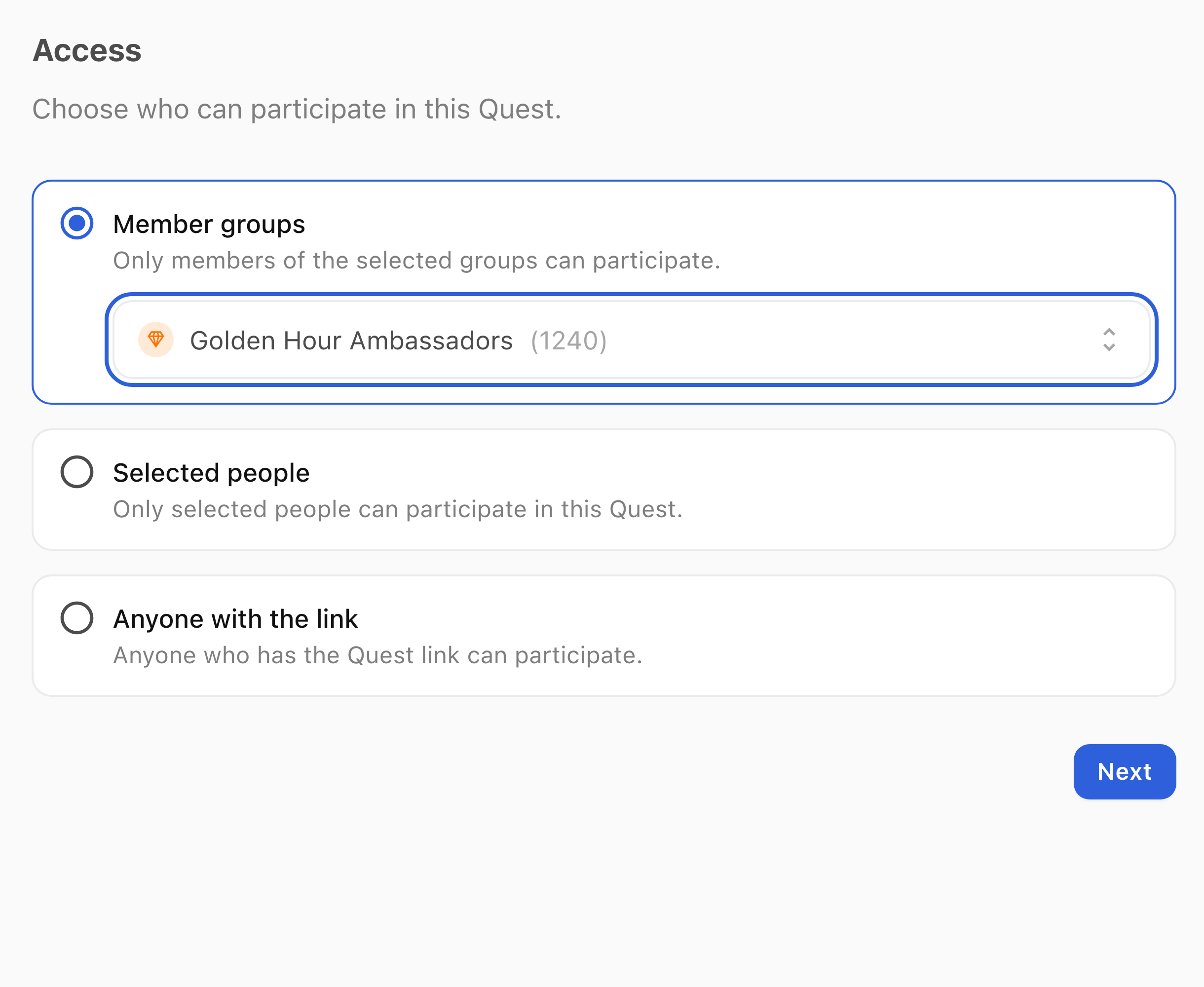
- In Access, choose Member groups and select the relevant group. Alternatively, choose Selected people or Anyone with the link. Select Next.
- In Details, enter the Quest name and optional description, then select Next.
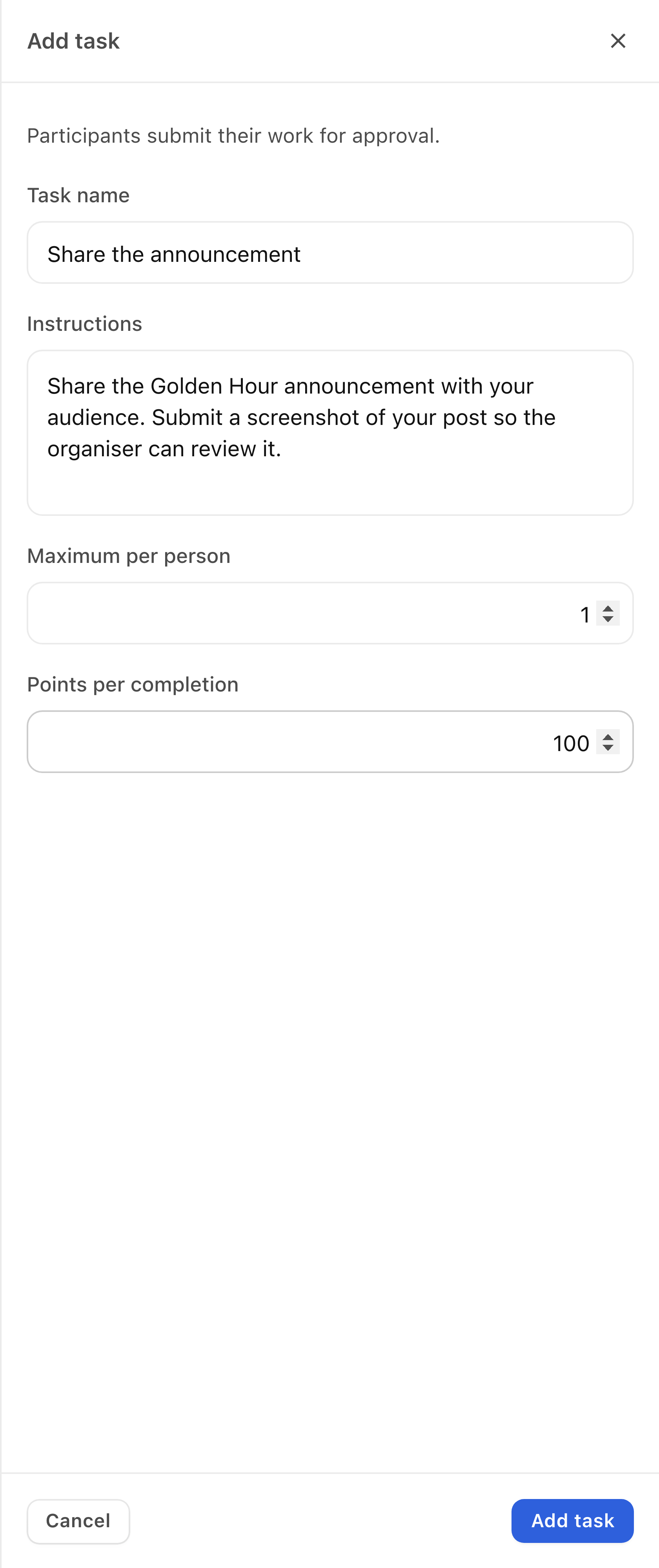
- In Tasks, select Add task. Enter Task name and Instructions, including what people should submit for review.
- Set Maximum per person if needed. If points are enabled, set Points per completion; leave it at 0 for a task without a points award.
- Select Add task in the task panel to add it to the working copy. Repeat for other tasks, then select Next.
- In Availability, check Quest opens, Quest closes and the displayed time zone, then select Next.
- In Message, choose whether to send the link by Email or WhatsApp. Check any displayed WhatsApp cost. Turn both channels off if you do not want an access message. Access messages are unavailable for Anyone with the link. Select Next.
- In Review, check the tasks and access. Select Save draft to continue later, or Publish Quest when ready. Publishing uses the availability and enabled message settings you have chosen.
Check access and submissions
- Return to Loyalty → Quests and open the quest.
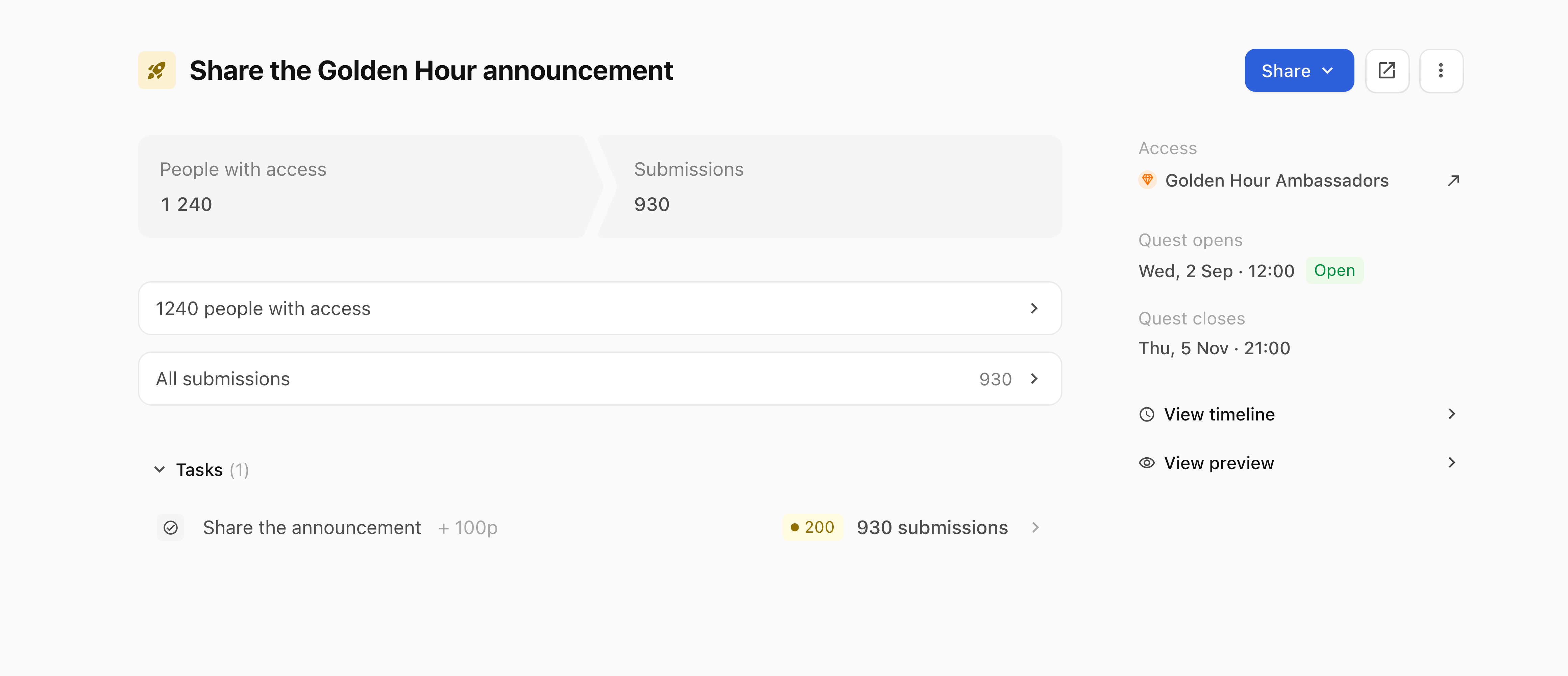
- Check People with access, Access, the task list and Submissions.
- Open All submissions to inspect submitted work. Check the person, task instructions and proof before making a review decision. A submission count is not a count of approved work.
Rewards
A reward gives people something to claim with points, such as an item to collect from your team. Use rewards when you have a points-earning activity and can fulfil what you offer. Adding a reward does not give anyone points.
For example, a task could offer 100 points for an approved completion, and a pin badge could cost 100 points. This illustrates how earning and spending can fit together; the setup screenshots do not show a points award or claim. Quest points are optional, and points can also be configured through ambassador sales.
Offer a reward for points
- Open Loyalty → Rewards. If points are off and the catalogue is empty, select Set up rewards. Review the confirmation explaining that points will turn on and the reward form will open, then select Turn on points and continue. Points stay on if you close the form without adding a reward.
- If the form is not already open, select New, or Add reward when points are on and the catalogue is empty. With an existing catalogue, New also works when points are off and does not turn them on.
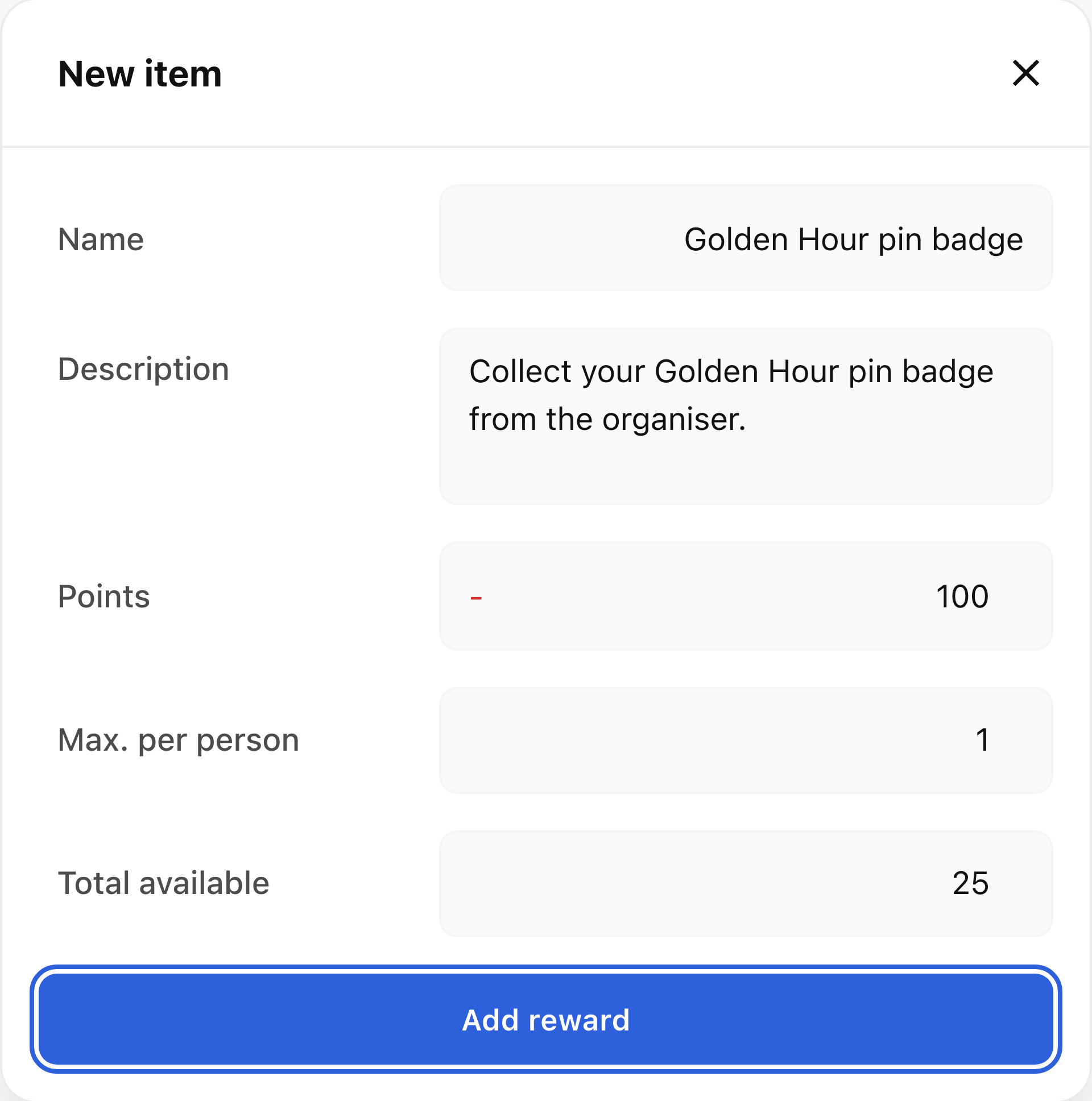
- In New item, enter the Name, Description and Points cost. Explain collection or delivery in the description.
- Set Max. per person and Total available if you need claim limits. Select Add reward when ready.
- Check that the item appears under Available rewards with its points cost and claimed count.
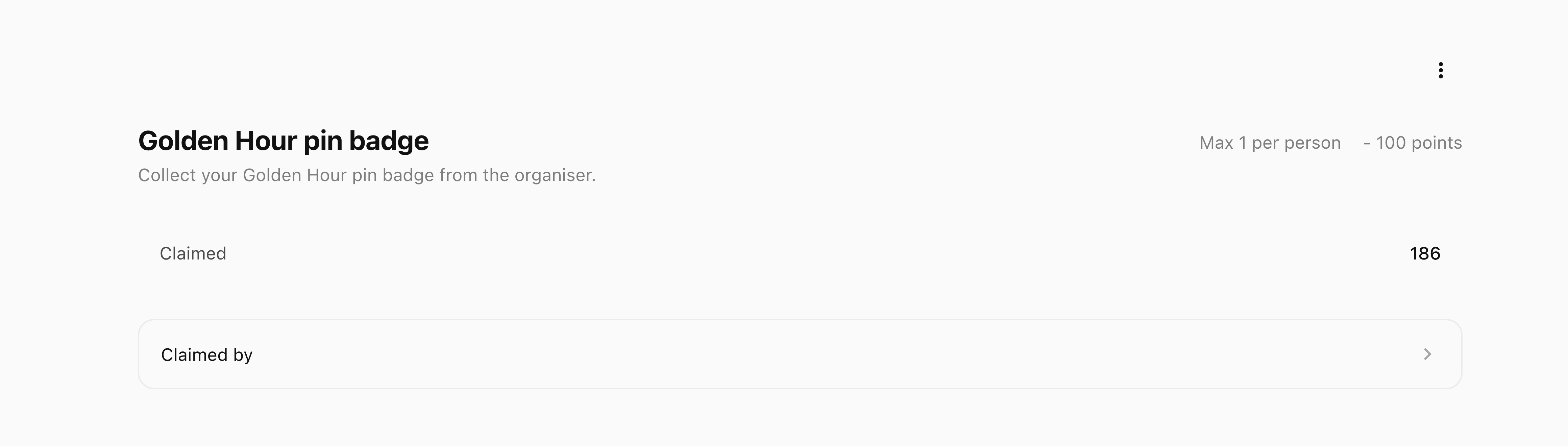
- Open the item to check Claimed and Claimed by. Arrange collection or delivery separately; a recorded claim does not confirm fulfilment.
If people cannot take part
- Open the quest and check its Access and availability. For member access, check the group in Audience → Memberships in the same organisation.
- For a missing reward, check Loyalty → Rewards and whether the item is under Available rewards. The catalogue and claims remain manageable when points are off; existing balances may still be usable for eligible rewards.
- If the issue remains, contact support with the organisation, quest or reward name and the step reached. Do not include private links or submitted personal information.