Set up an ambassador sale
Give a member group personal referral links to share an event’s tickets.
An ambassador sale gives members of a selected group personal promotional links to share with ticket buyers. This guide is for organisers setting up ticket referrals. For member groups, tasks and rewards, see Quests, points and rewards.
Before you start
You need access to manage the organisation and event, a member group for the ambassadors and an event with ticketing set up. Set up ticketing before adding a sale. You can create the member group in Audience → Memberships.
Create the ambassador sale
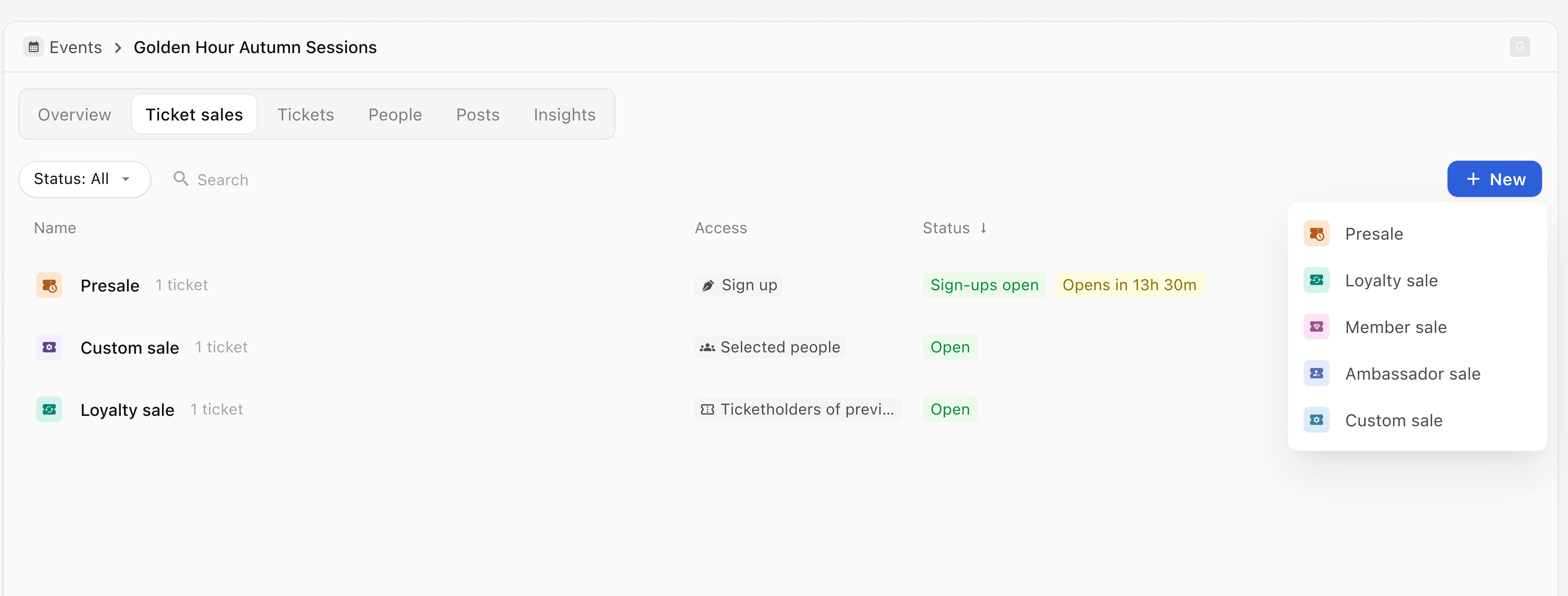
- Open the event from Events, then open Ticket sales and select New, or Create ticket sale for its first sale.
- Select Ambassador sale from the dropdown for this event.
- In Access, choose Member group and select your ambassador group.
- Check Show sale publicly with lock: turning it on makes the sale publicly visible with a membership lock. Select Next.

- In Ambassadors, enter the Title and Description shown to ambassadors.
- Open Max referrals per ambassador to set the cap on tickets bought through each ambassador’s link, including their own purchases.
- If points are enabled, open Referral points and set Points per referral. Select Next.

- In Tickets, enter the buyer-facing Sale title.
- Use Select ticket to choose existing tickets, then select Done. To create a ticket instead, use Add ticket and finish its editor with Add ticket.
- Check the ticket prices and capacity, WhatsApp updates at checkout and, when available, Referral discount. Select Next.
- In Availability date, check Opens, Closes and Visible from. On save opens the sale when you create it. Select Next.
- In Messages, choose whether to send the sale link by Email or WhatsApp, and check When? for access-message timing.
- Open Reminder settings and review reminders separately. To avoid notifications, turn off both access-message channels and disable reminders.
- Select Next to open Review. Check the timeline, Access, tickets, referral cap and discount.

- Select Create sale when ready, or Save draft to keep working later. Creating the sale can open access and send any messages you enabled.
- On the sale’s management page, check its status and the group under Access. A sale opening on save shows Open. The page also shows People with access and Tickets sold.

Access and notification delivery are separate: creating a sale with messages off does not send an access message.
Check discounts and points
- Referral discount changes the buyer’s ticket price. Its availability depends on the ticket provider’s capabilities.
- Referral points sets the points an ambassador can earn per ticket sold. The section appears when points are enabled for your organisation.
- Reward items are managed separately in Loyalty → Rewards. Adding points to a sale does not add items to the reward catalogue.
If something is missing
- Next is unavailable in Access: an ambassador group is required. If no suitable group exists, follow Create a group for member access.
- Next is unavailable in Tickets: at least one ticket must be selected and the selection completed with Done.
- Points controls are missing: open Loyalty → Rewards to check whether points are enabled.
- A link no longer allows purchases: check the sale status, referral cap, availability dates and ticket capacity before sharing it again.
For a setup or access problem you cannot resolve, use Need more help? Message support below. Include the organisation, event, step reached and error shown. Do not include personal promotional links.