Connect WhatsApp to your organisation
Connect a new or existing WhatsApp business account and check its status, consent and reply settings.
Connect WhatsApp to use it as a notification channel for your organisation. You need permission to manage the organisation's communication settings and access to the Meta business account you intend to use.
Find your WhatsApp connection
- Open your organisation dashboard.
- Open Settings → Email & WhatsApp.
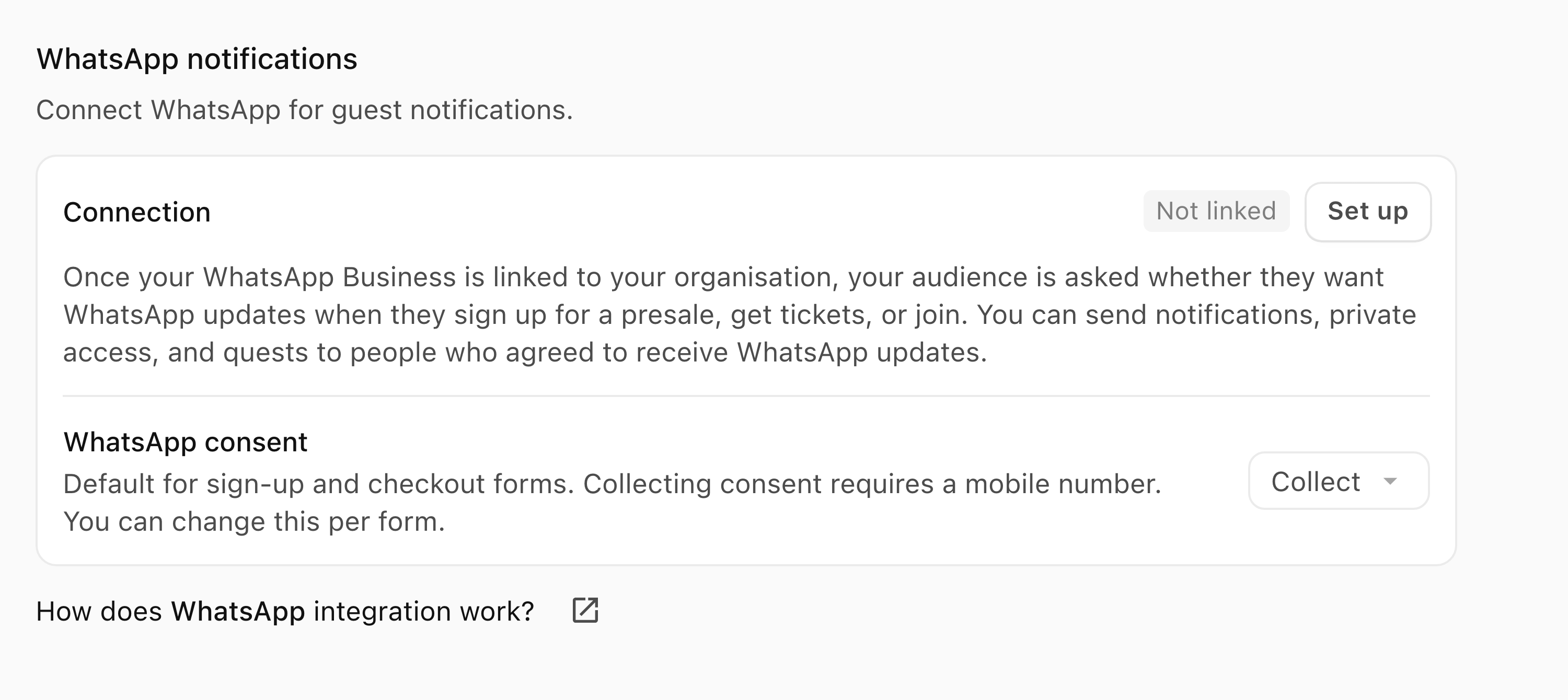
- Find WhatsApp notifications and read Connection. Not linked means you can start setup with Set up.
Use an existing account or number
New and existing accounts start from the same Set up action. Account and number selection take place in Meta's window; BASH has no separate form for choosing an existing number.
Before starting:
- Check that your Meta account can manage the intended business assets and keep access to the number available for verification.
- If the number is used in the WhatsApp Business app or through another provider, read the connection or migration requirements presented for that account. Stop and ask BASH support if the effect on your current service is unclear.
- Keep your existing service in place until the connection route is clear. Do not delete or disconnect it to make a missing account or number appear.
- If BASH already shows a linked connection, follow the connection status guidance before attempting setup again.
Start setup with Meta
Meta controls the account and number choices after the handoff. Have access to the intended business account and to any number Meta asks you to verify.
- Beside Not linked, select Set up. BASH shows Linking WhatsApp and opens a Facebook signup window. Allow the popup and keep the BASH tab open.
- Sign in using the Meta account that can manage the intended business.
- Choose or create the business account offered by Meta. For an existing account, select the intended business account and number where Meta offers them. Check both before confirming; the options depend on the account.
- Complete the number, verification and billing requirements shown by Meta. Stop and ask support before accepting a migration you do not understand.
- Return to BASH and read Connection again. Use the status guidance below if another action is required.
Starting signup or closing the Facebook window does not mean the connection is ready. BASH's connection status, account restrictions and message approval determine whether you can send.
Understand your connection status
- Not linked: select Set up to start linking.
- Inactive: select Activate to enable the existing connection.
- Waiting for Meta...: setup is awaiting Meta approval. Wait for the status to change before relying on WhatsApp for an announcement.
- Action needed: select Review and resolve the requirements shown.
- Error: use Retry to check the current status. Contact support if the error remains.
- Active: the connection is linked. Check Message limit:, any Daily limit reached notice and the approval status of the message you want to send.
An active connection is separate from recipient consent and message approval. For the sending workflow, follow Send a post through WhatsApp.
Choose how to collect consent
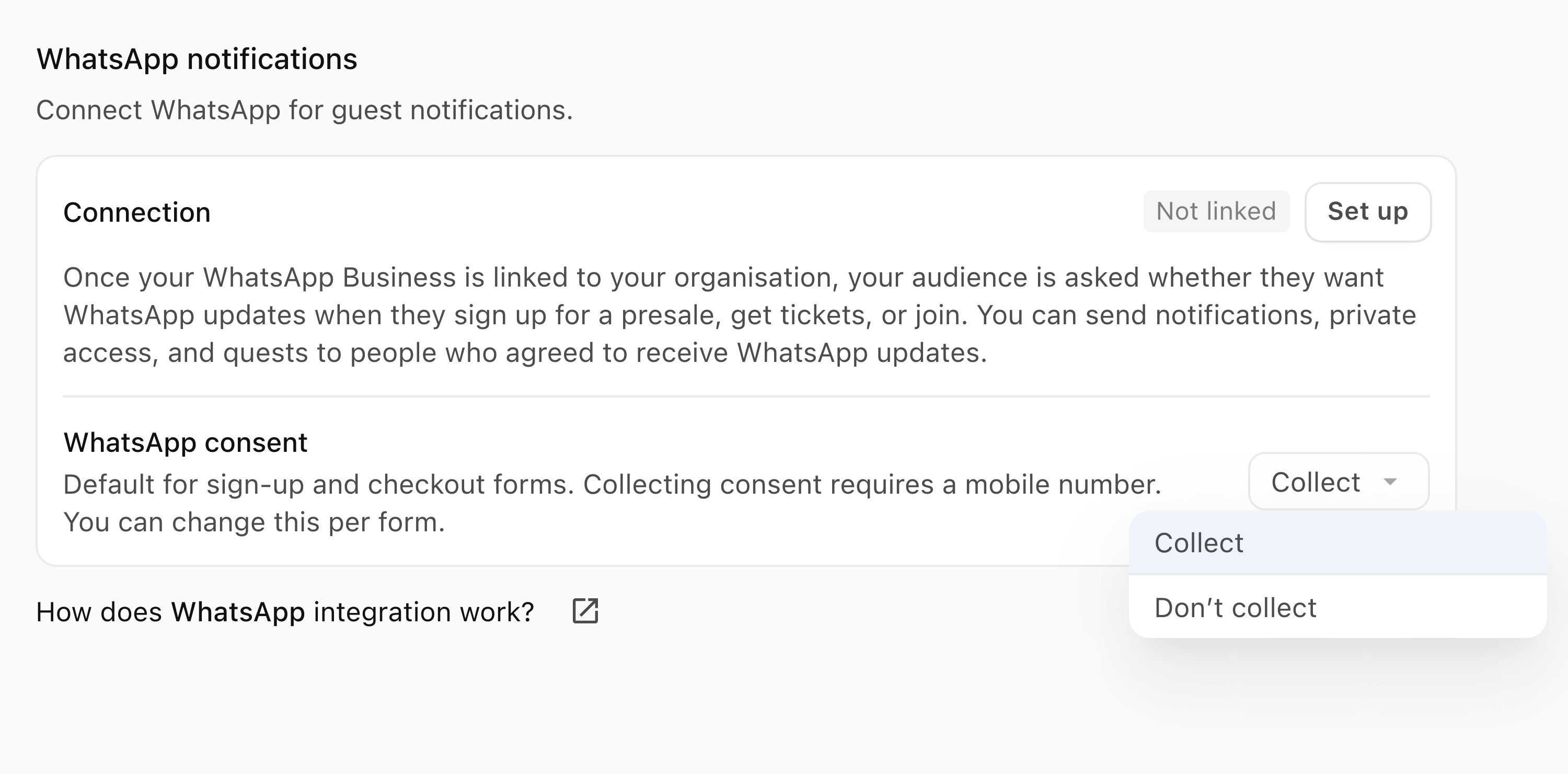
- In WhatsApp notifications, open WhatsApp consent.
- Select Collect or Don’t collect for the organisation default. Collecting consent requires a mobile number on sign-up and checkout forms. Individual forms can override this default.
- Check the selected value after saving. The choice saves when selected; there is no separate Save button on this settings page.
Changing this default does not subscribe existing contacts. Check the eligible recipient count when preparing a notification.
An imported mobile number is contact information, not WhatsApp permission. A ticket holder or email subscriber is not automatically eligible for WhatsApp. Check the channel's eligible recipient count in Send before publishing; see Send a post through WhatsApp.
When connection details are available:
- Open WhatsApp replies.
- Choose Reply in Messages or Send an automatic reply, depending on how your team will handle replies.
For current Meta charges, check WhatsApp's pricing page.
If the account or number is not offered
- Check that the Meta account you signed in to can manage the intended business assets.
- Read the available account and number choices, including any connection or migration requirements.
- If the intended option is still missing, stop and contact support using the action below. Include the organisation, step reached and missing option. Keep your existing service in place and do not share verification codes or credentials.
If setup does not open or finish
- Popup blocked: allow popups for BASH, then select Set up again.
- Browser blocking connection: check whether browser privacy settings or an extension is blocking Facebook. Try another supported browser if needed.
- Linking WhatsApp remains open: check the Facebook window. Use Cancel to leave the BASH loading dialog if you want to stop the attempt, then read Connection before starting again.
- WhatsApp setup couldn't complete: return to the connection status and check the account used for setup. If the error says no number was linked, check that the number-selection step was completed. Ask support if the error repeats.
If you need help:
- Select Need more help? Message support below this article.
- Include the organisation, connection status and error shown.
- Select Open support message and review the draft before sending it. Do not share passwords, verification codes or account tokens.