Send a post through WhatsApp
Check your connection, recipients and message approval before sending a WhatsApp update.
Send a post as a WhatsApp notification to eligible contacts. You need permission to manage posts, a ready WhatsApp connection and people who have agreed to receive WhatsApp updates in the selected audience.
Check the connection and recipients
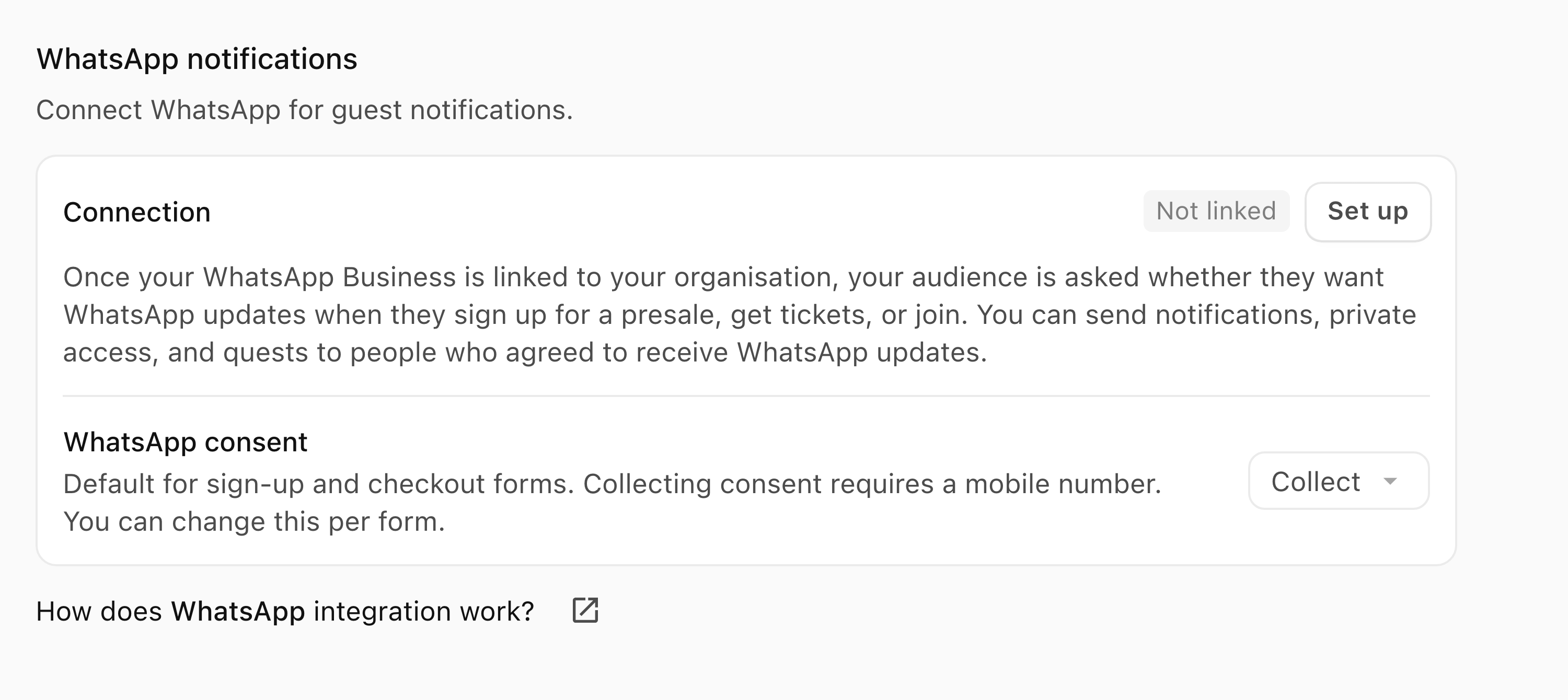
- Open Settings → Email & WhatsApp and find WhatsApp notifications.
- Read Connection and resolve any Set up, Activate or Review action shown. See Connect WhatsApp.
- Open Posts → New.
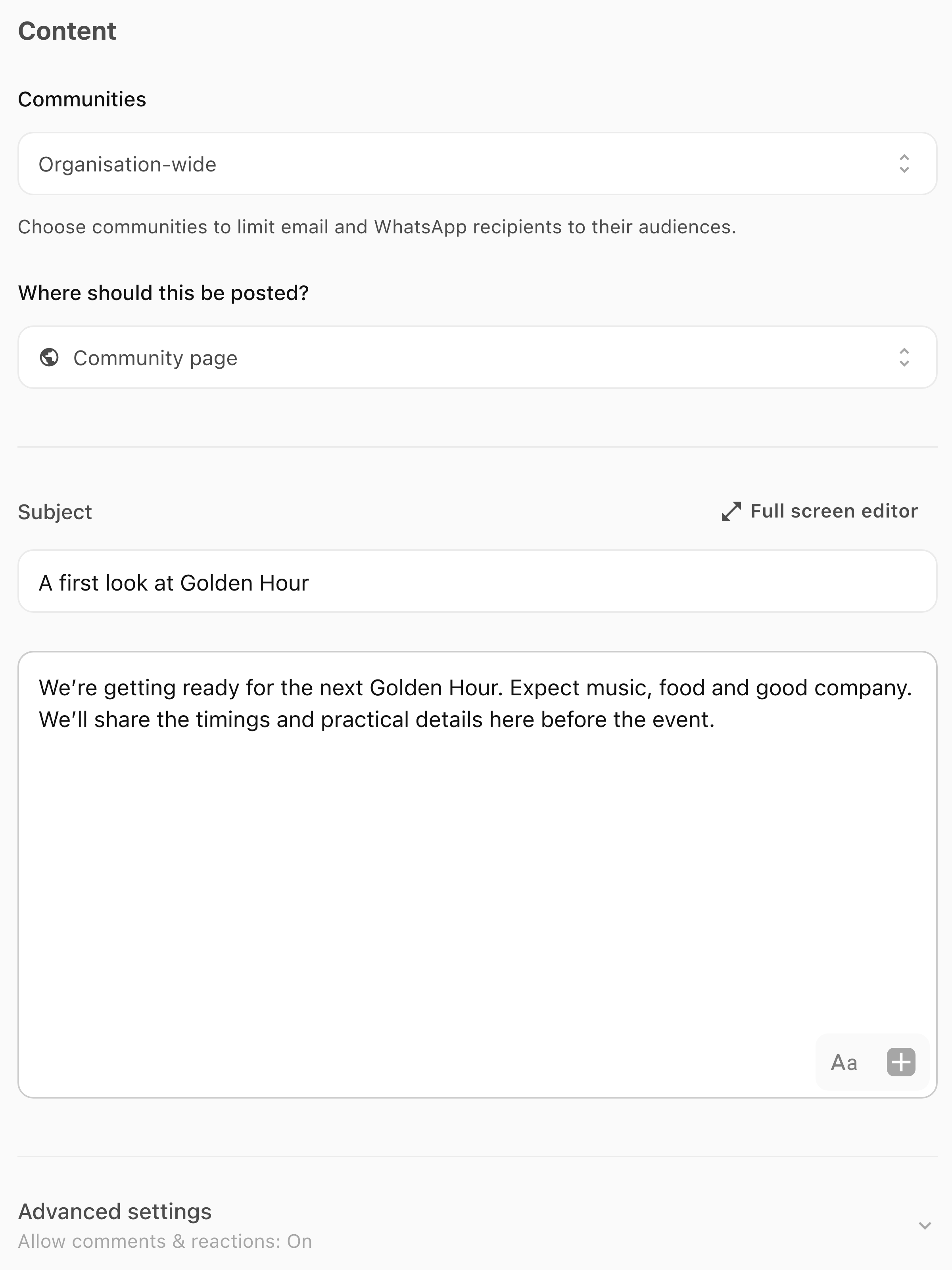
- In Content, choose the destination and access. Follow Publish a post to your audience for those choices.
- Enter a Subject and write the message in the editor.
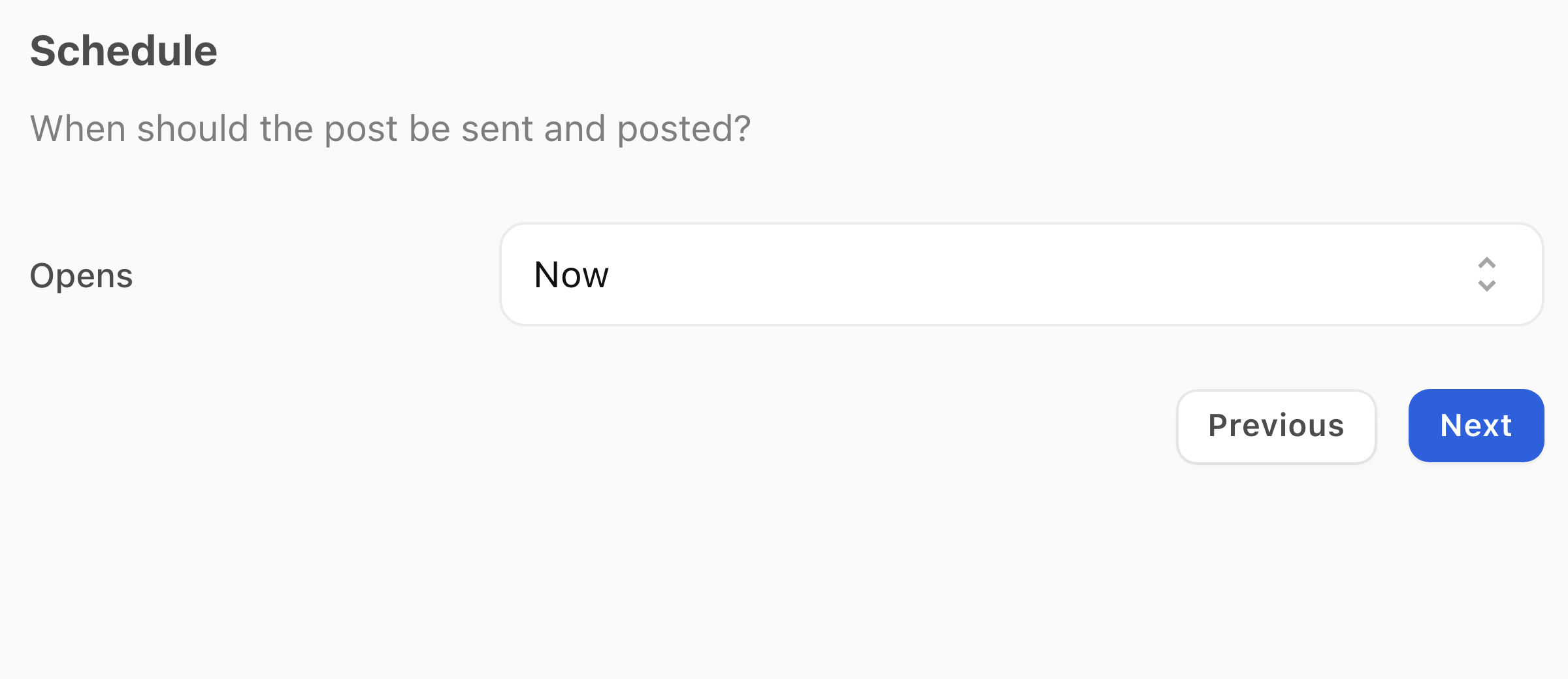
- Select Next to open Schedule. Check Opens: keep Now for immediate publication, or choose a future date and time and select Done. Check the time zone again in Review before confirming.
- Select Next to open Send.
- Turn WhatsApp on and check the eligible count and connection notice before continuing.
- Turn Email off if you do not also want an email.
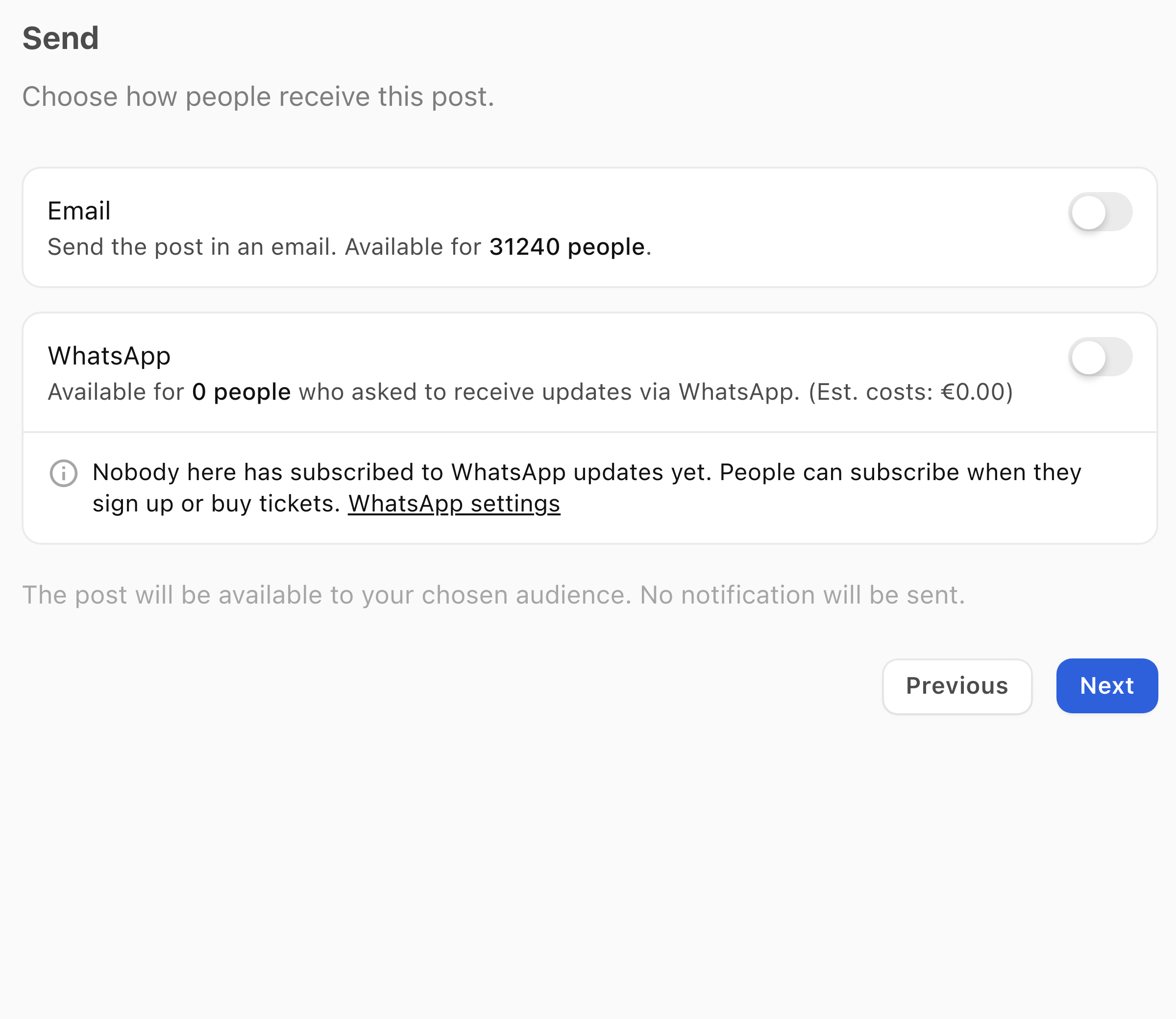
A zero available count does not mean there are no recorded WhatsApp opt-ins. In this example the account is not linked and the phone numbers are not routable; resolve connection and recipient requirements before relying on the channel. A ticket holder or email subscriber is not automatically a WhatsApp subscriber, and importing a phone number does not record WhatsApp permission. If you need to sync ticket-holder history into Audience, see Sync a ticket provider audience.
Choose the WhatsApp message
The dropdown beneath WhatsApp offers two delivery choices:
- Send link to post sends a link to the post. Check the WhatsApp preview tab to see the link message.
- Send WhatsApp version sends a separate version of the message and requires Meta approval. Complete the review below before publishing or scheduling.
For Send WhatsApp version:
- Select Review message. The Review WhatsApp message dialog shows the original post and the WhatsApp message.
- Read the WhatsApp message and check its buttons. If it needs changing, select Edit, make the changes and select Save. These edits change the WhatsApp version, not the original post.
- Select Submit for approval when the version is correct. A changed or rejected version can show Submit again. This requests Meta review; it does not send the update to your audience.
- Check the approval status back in Send. If the review dialog is still open, Done closes it.
- Wait for the required approval before publishing or scheduling. If it is pending, follow the draft steps below.
Do not treat a saved draft or a submitted approval request as a sent message.
To leave the post while approval is pending:
- Select Save draft.
- When you want to continue, open Posts → Drafts.
- Select the post and check the WhatsApp approval status again.
Review and confirm the send
Sending can incur charges. Check the eligible count, cost estimate and your current account limits before confirming.
- Check the final subject, message and actions in Content.
- In Schedule, check Opens and choose the publication time. In Send, confirm WhatsApp is on and the required approval is complete.
- Open Review and check Posted, Sender, Who can read, Schedule and Sending to, including the displayed time zone. Use Change beside Schedule if the publication time needs correcting.
- Select Send & Post to send and publish now, Send for a Send-only post, or Schedule post for the selected future time.
- Return to Posts and check the post's status. Publishing or scheduling does not confirm delivery to every recipient.
Check consent, limits and cost
- Open Settings → Email & WhatsApp.
- Find WhatsApp consent and check whether the organisation default is Collect or Don’t collect. Individual sign-up and checkout forms can override it. Importing a phone number does not subscribe someone to WhatsApp updates.
- When connection details are available, read Message limit: and any reset notice.
Meta's charges depend on the recipient's market and message category. Check WhatsApp's current pricing and the billing requirements for your account rather than relying on an old fixed rate or allowance.
If you cannot send
- Not linked: select Set up and complete the connection first.
- WhatsApp approval required: select Review message. The final send action stays unavailable until the required approval is complete.
- Inactive, Waiting for Meta... or Action needed: use the connection status guidance.
- Schedule paused after editing a scheduled WhatsApp version: wait for the required approval, then check Schedule and confirm your publication timing again.
- Daily limit reached: check the reset notice before planning another send.
- No eligible recipients: check the intended audience and WhatsApp subscriptions. The connection alone does not create consent.
- An uncertain publish result: use Check status and check Posts before sending again.
If the problem remains:
- Select Need more help? Message support below this article.
- Include the organisation, post subject, status and error shown.
- Select Open support message and review the draft before sending it. Do not include private access links or verification codes.