Start selling tickets for an event
Connect your ticket provider, or use direct BASH ticketing for community tickets when a connection is not possible.
Connect your usual ticket provider to BASH first. The provider choices currently shown are Weeztix (link your Weeztix event) and Paylogic (link your Paylogic event). Saving a provider choice is separate from connecting its account and selecting the event.
For example, you can keep an event with its connected provider while using BASH to manage a presale or community access.
If your provider is not listed, contact support to request an integration and ask whether one is planned. When a provider connection is not possible, Sell directly through BASH is the fallback for your community tickets. Agree an attendee import with your normal provider or arrange BASH check-in for that allocation before selling. Read how the fallback works.
Before you start
You need permission to manage the event’s ticketing. An Entry manager can check people in but cannot set up ticket sales. If another organisation manages ticketing, follow the event’s ticketing message.
Open your event’s tickets
- Open the correct organisation in your dashboard.
- Open Events and select the event.
- Select Tickets to open the event’s ticket catalogue.
The empty catalogue shows No tickets yet. The Set up ticketing action opens the provider choice.
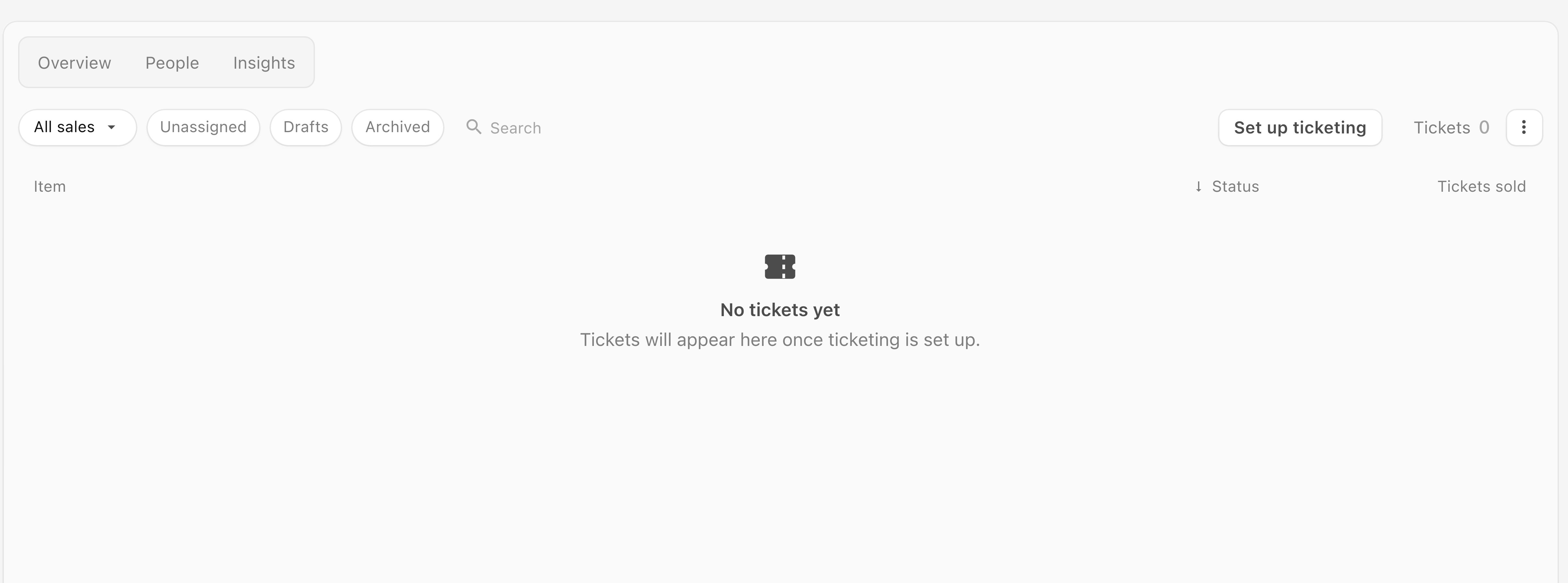
Choose your ticketing setup
- Select Set up ticketing.
- Open Select provider, or the button showing the current provider choice.
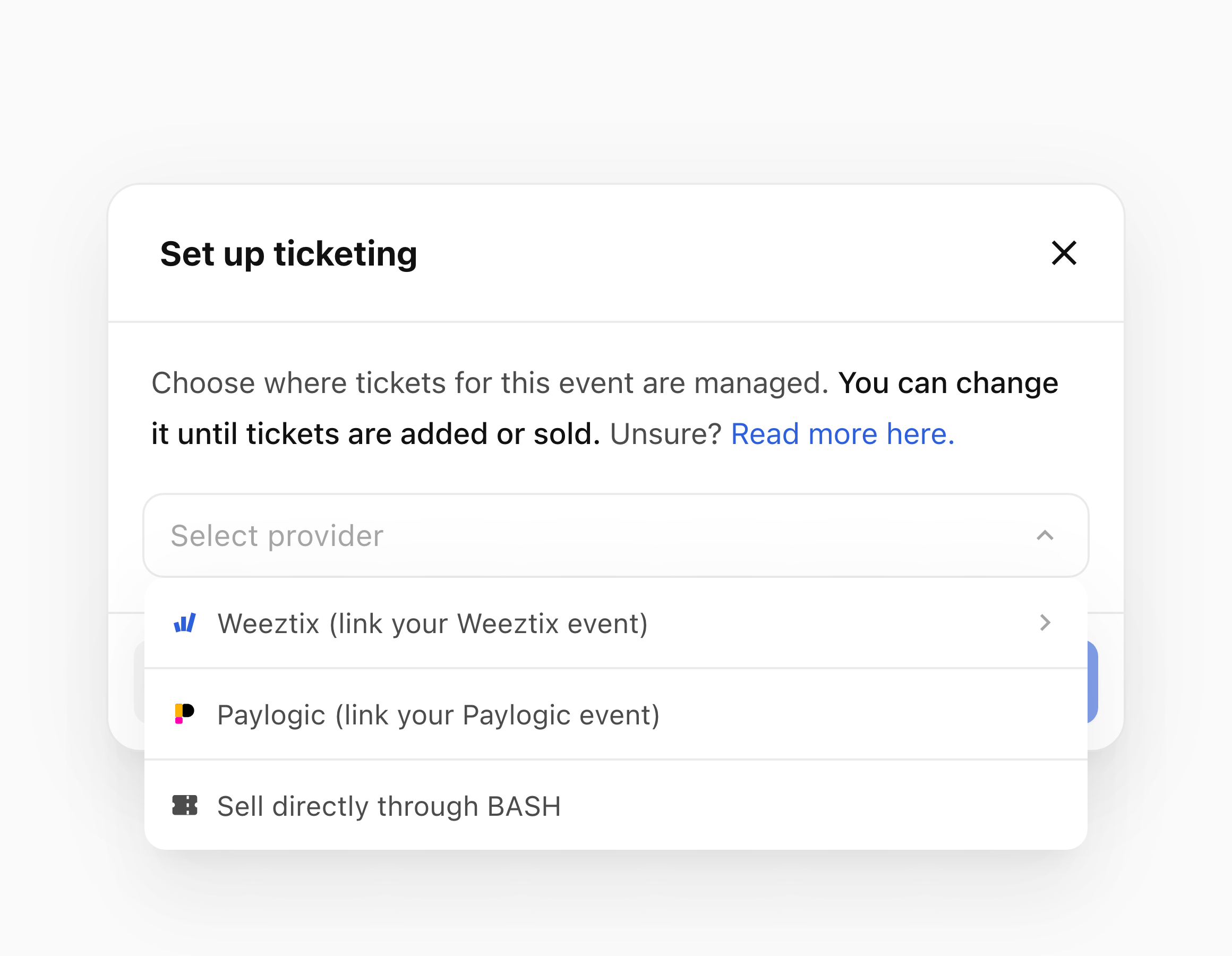
- Choose Sell directly through BASH, Weeztix (link your Weeztix event) or Paylogic (link your Paylogic event).
Link a provider event
- If the account is not connected, select Connect Weeztix or Connect Paylogic and complete the connection in the provider window. To connect or manage the account separately, open Settings → Integrations and choose the provider.
- Select the matching provider event. Check that it is the intended event in the provider account; do not rely on its name alone.
- Follow the remaining setup messages. If Save is disabled, the provider choice is not ready to save.
- Select Save when the setup is ready.
Connection, event selection and sales readiness are separate stages. Check sales readiness before sharing a sales link.
Connecting a ticket provider makes its ticketing data available. Adding its audience has separate choices. See Sync a ticket provider audience.
Provider account connection requires the external provider’s setup. If you cannot complete it:
- Select Cancel to leave the event’s saved ticketing unchanged.
- Contact support with the provider and the message shown, using the support steps below.
Sell directly through BASH
- Select Save in the provider dialog.
- Continue with adding tickets in BASH.
If you made the ticketing choice while creating an event, it is part of that event’s working copy:
- Complete Review.
- Select Create event to save the event and its tickets.
For the full ticket procedure and the difference between creating a ticket and offering it for sale, see Sell tickets directly through BASH.
Check the saved result and attendee page
When selling directly through BASH, Tickets lists the saved tickets, their status, stock and the sales that include them. A ticket with Add to sale is not yet included in a sale. See Add a ticket to regular sales.
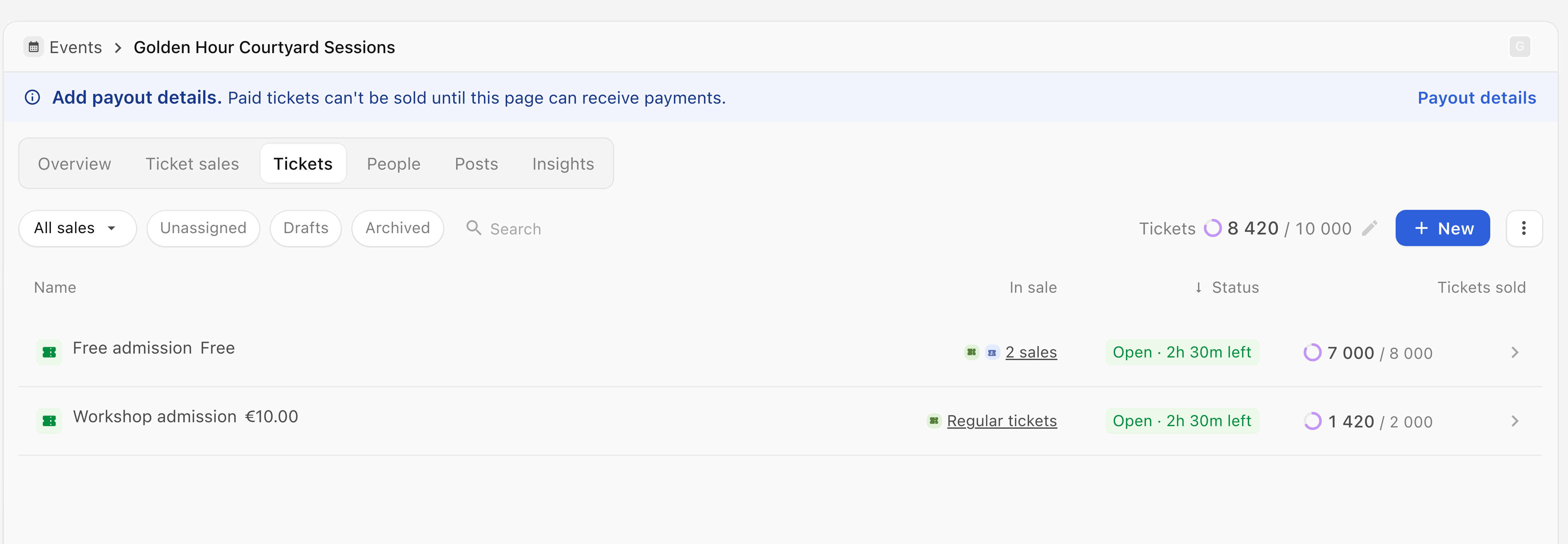
- Open the event’s Overview.
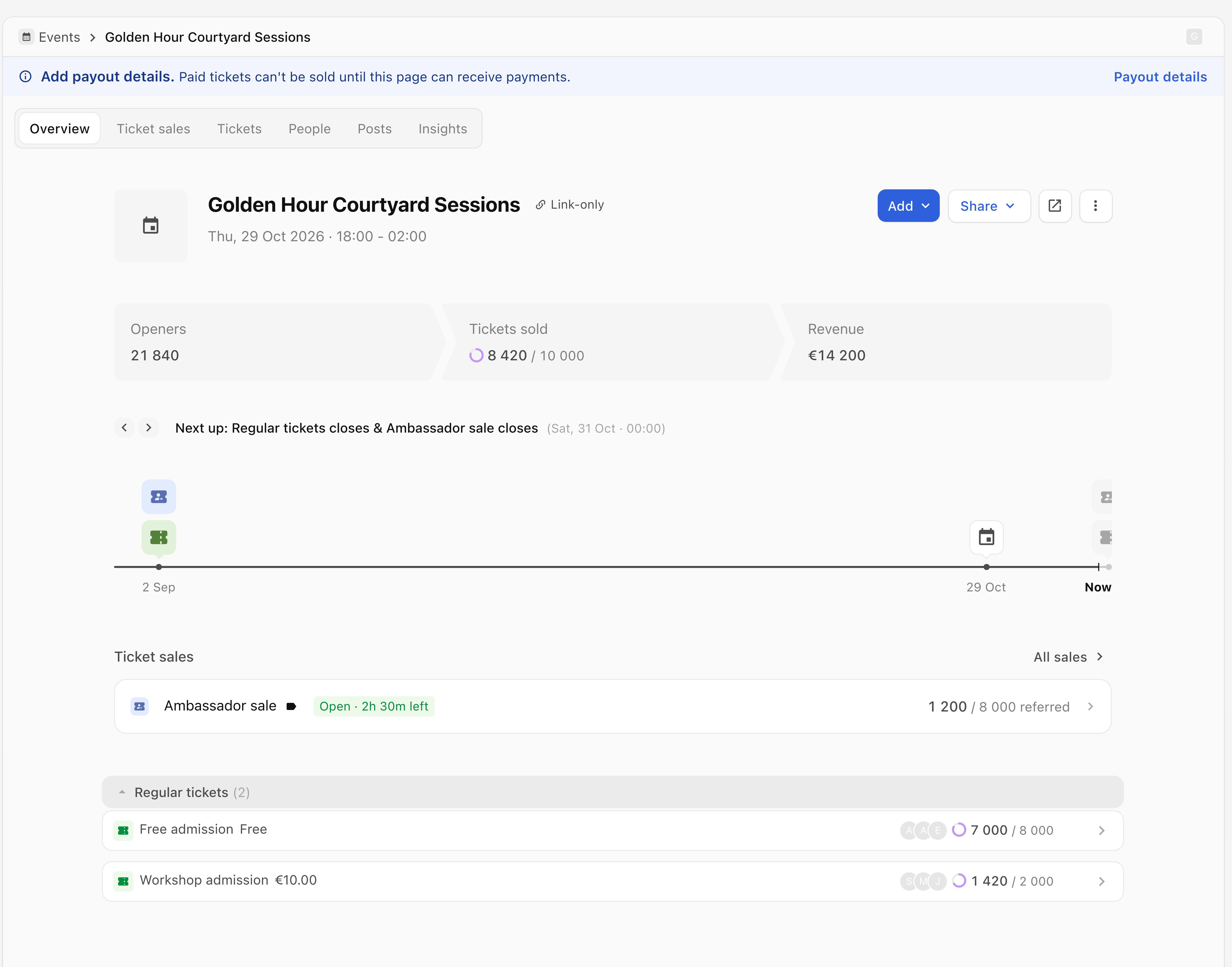
- Select Open, shown as an arrow leaving a square, to inspect the attendee page.
- If you already hold a ticket, select Get more tickets.
- Check the event name, date, time and ticket availability.
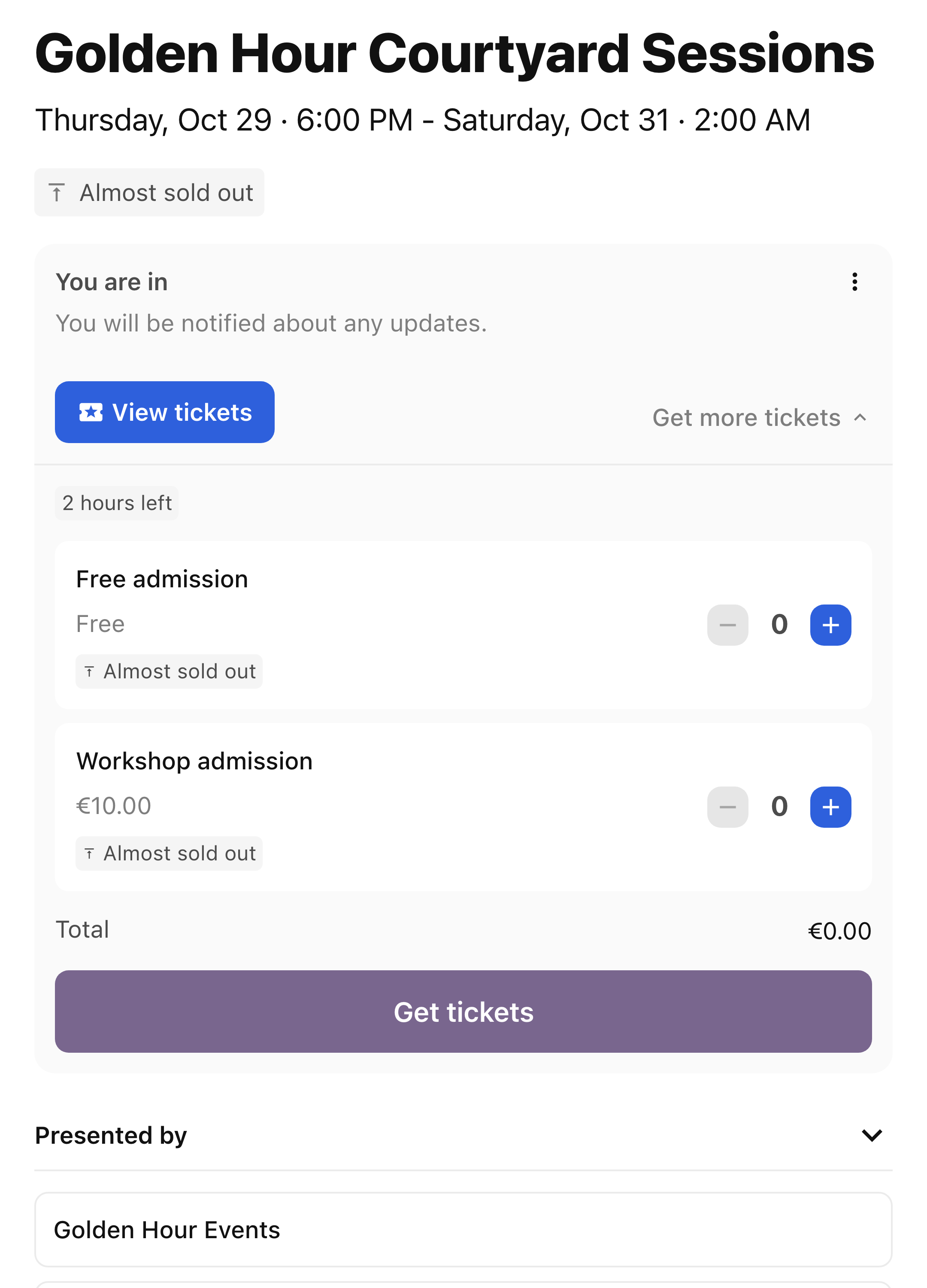
- To copy the event page link, select Share, then Copy event page link.
- Check that this is the type of link you intend to share. A personal or restricted sale link can grant different access from the event page link.
Check payout setup
For paid tickets, resolve payout setup before charging attendees:
- Open Settings → Ticketing → Sell directly through BASH.
- Inspect the payout status and follow any setup instructions.
- Review the current fee information for your organisation and the amount shown in checkout.
If tickets are unavailable
Check the following:
- The ticket has been added to the intended sale.
- The sale dates allow purchases.
- Stock remains.
- The visitor meets any access requirement.
A ticket’s Open status in the catalogue does not by itself mean it has been added to a sale.
Your ticketing choice can become fixed after tickets are added or sold. If BASH says it can no longer be changed, contact support before moving ticketing. Connected-provider tickets use that provider’s check-in system; tickets sold directly through BASH use the event’s check-in tools.
If you cannot continue:
- Select Need more help? Message support below this article.
- Include the organisation, event, provider, step reached and exact message.
- Select Open support message, then review and send the draft.
Keep payment details and personal access links private.