Import and sync your audience
Add contacts from a file, sync ticket-provider audiences or keep selected Brevo and Mailchimp lists updated in BASH.
Use Add people to bring existing contacts and ticket-provider audiences into your organisation. Choose a file for a one-time import, or connect a supported source for ongoing updates. Adding people does not send them a notification.
Before you start
You need permission to manage your organisation's audience. Connecting an external account also requires access to the intended provider account. Check the organisation and account before continuing.
A contact record, an event ticket and permission to receive updates are separate. Check the source of imported subscription information. A stored phone number does not give someone WhatsApp permission.
Choose your source
- Open Audience in the organisation dashboard.
- Select Add people.
- Open Select source and choose the source you want to use.
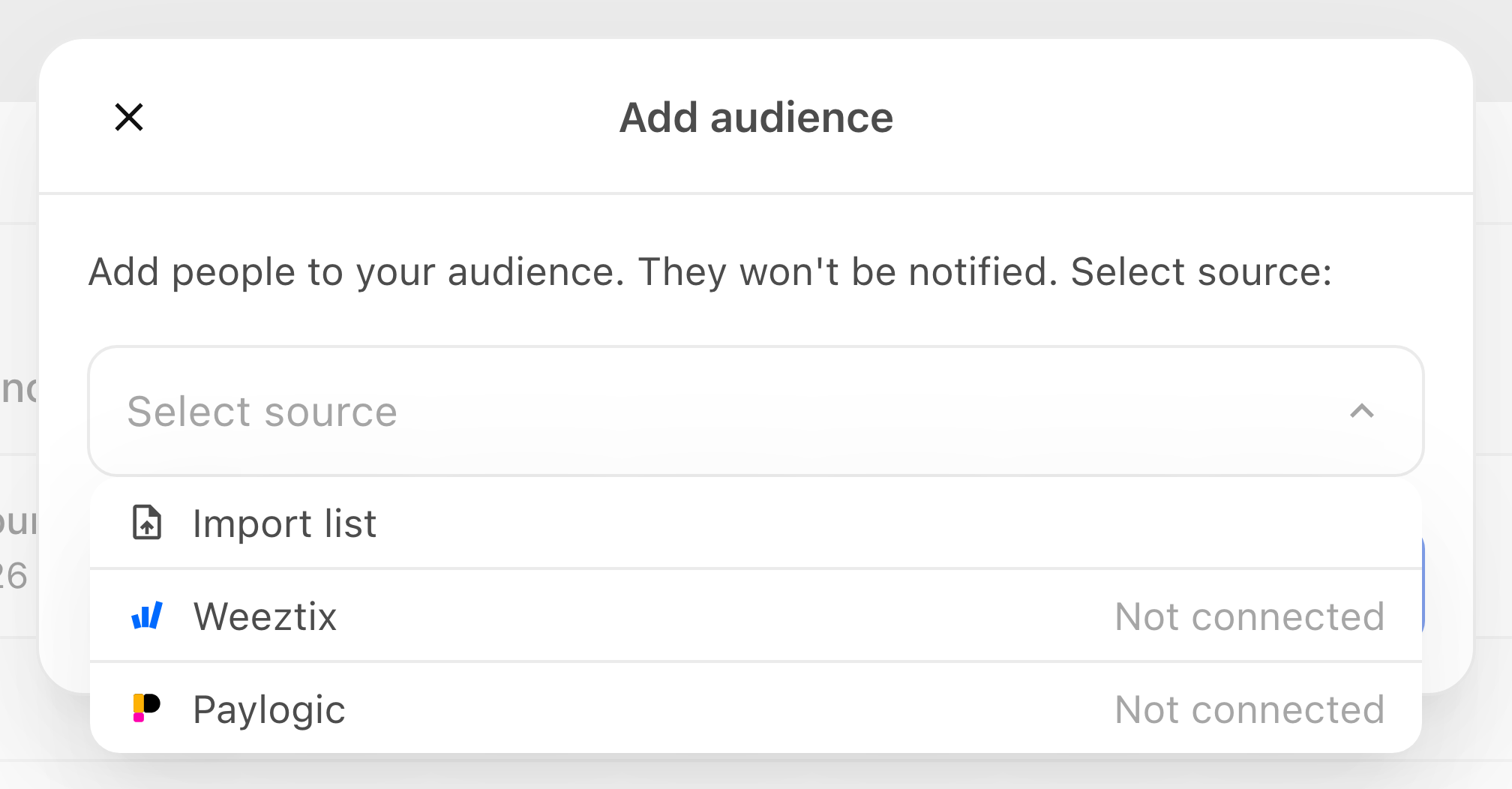
| Source | What you add | What keeps updating |
|---|---|---|
| Import list | Contacts from CSV or Excel, added to your audience or an event audience. | This is a one-time import. Later edits to your file do not update BASH. |
| Weeztix or Paylogic | Ticket-provider event audiences and the people who signed up for updates. | Event audiences continue updating. Automatically adding new events is a separate choice. |
| Brevo or Mailchimp | Contacts from the lists you select, with their email subscription information. | Changes from those lists update BASH automatically while the connection remains active. |
The sources available depend on the connections enabled for your organisation. If an expected source is missing, contact support with its name and the organisation you are using.
Import a CSV or Excel file
- Choose Import list under Select source.
- Select CSV template if you need an example of the supported columns. Your file needs an email column. You can add names, phone numbers and other supported details when available.
- Under Upload file, choose a CSV or Excel file. You can add several files, up to 20,000 rows in total. Alternatively, select Insert as text, paste your list and select Use list.
- Check the destination beside each list. Keep Audience for organisation contacts, or choose Event audience and the intended event. Use Add event if you need to enter a new event's name and date.
- If BASH recognises events in a ticket-provider export, review the proposed events before choosing Add as event audiences. Check their names and dates, including any match to an existing event.
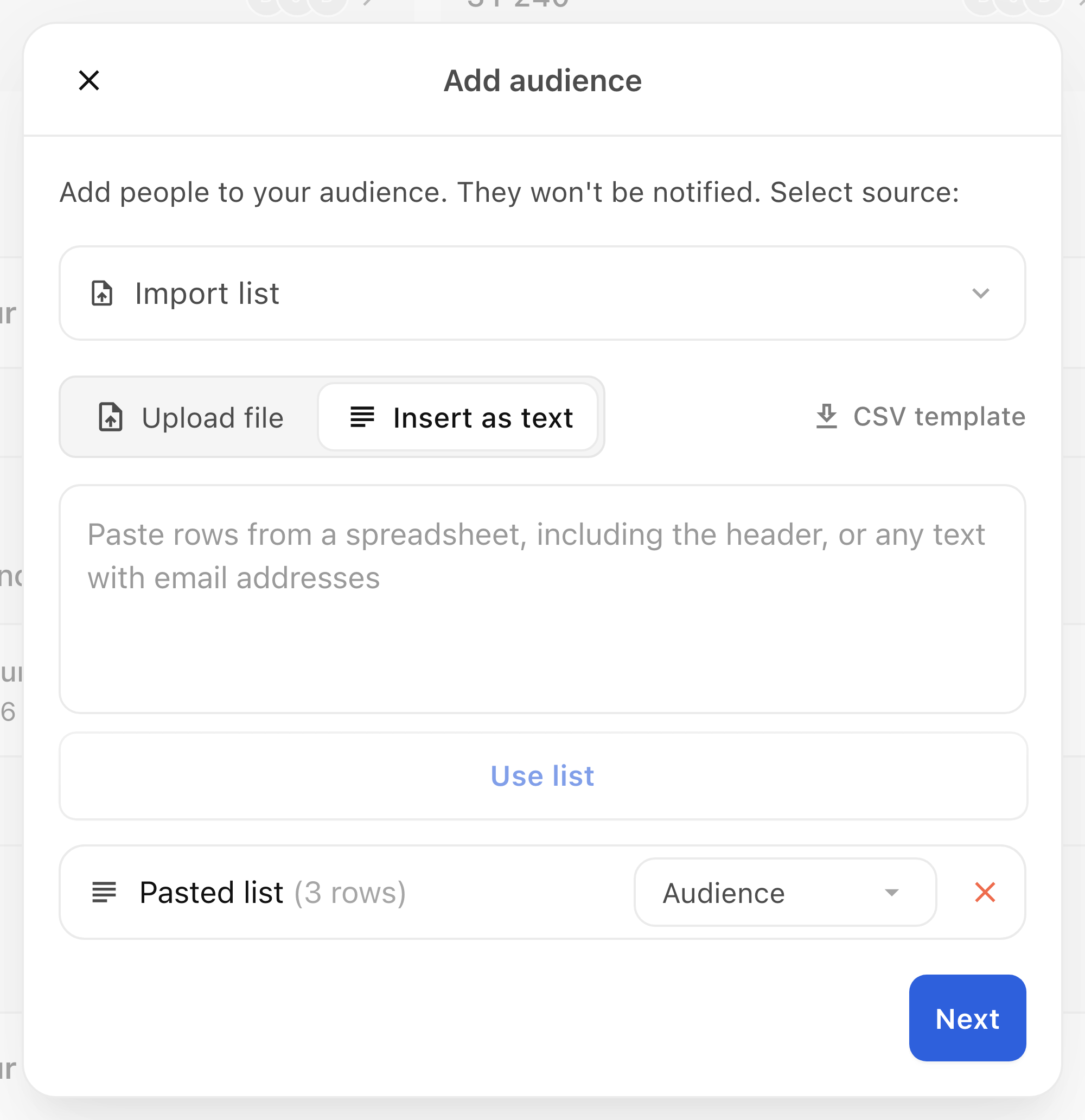
- Select Next to prepare Review.
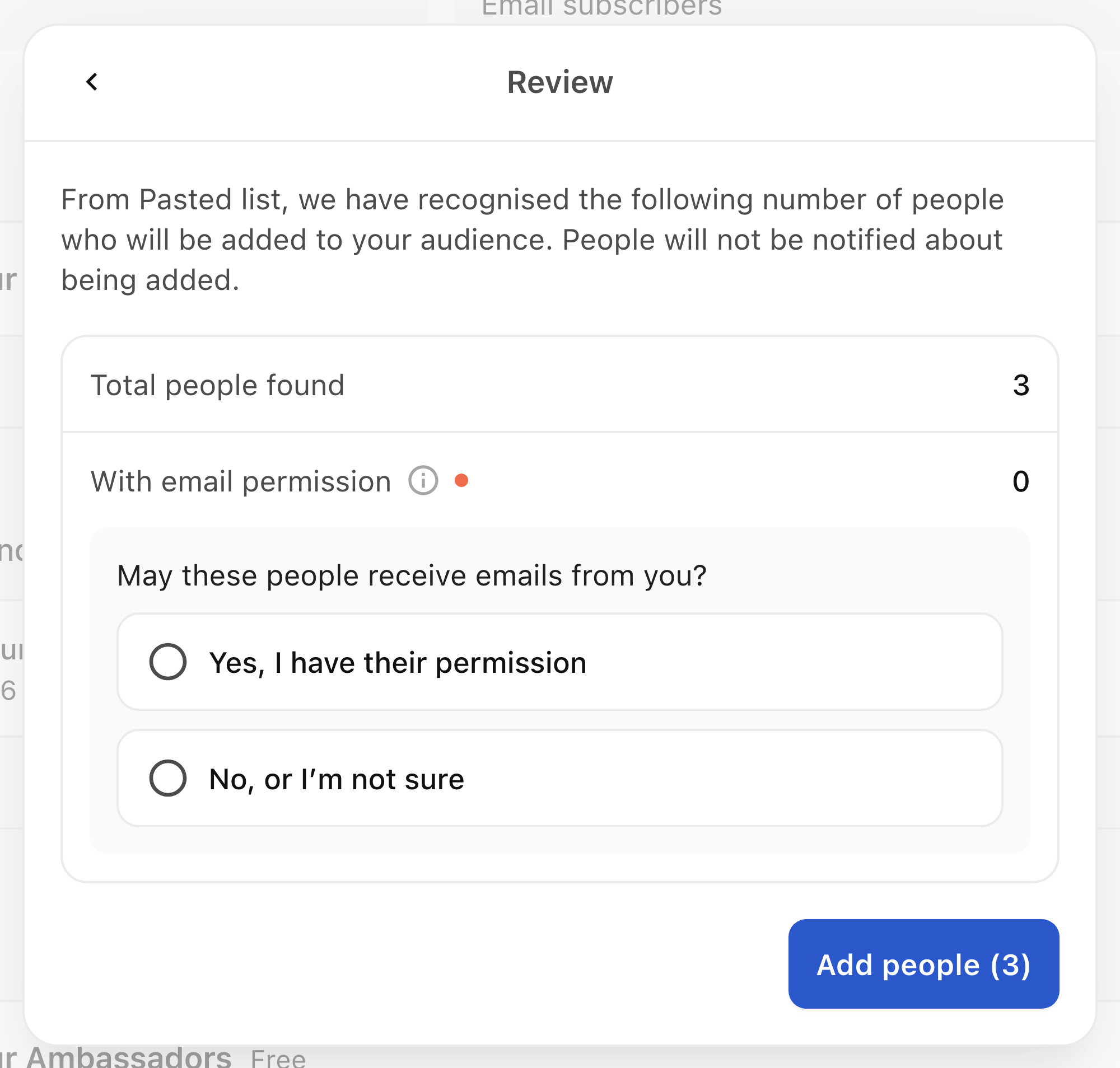
In Review:
- Check the total people, email permissions, phone numbers and people already in your audience. Open any details for rows BASH could not read; correct the file or download those rows to inspect them.
- Answer any email or WhatsApp permission questions using the information you actually hold. A Yes answer records your confirmation; uploading a number or buying a ticket is not itself evidence of that permission.
- Complete any missing event dates. Check recognised corrections and existing-event matches before continuing.
- Select the final Add people button with its displayed count when the review is complete. Answer any open questions before confirming. If there is nothing to add or update, select Done.
- Check the completion state, then open People or the intended event audience to inspect the result.
BASH matches existing people rather than creating another person for every row. Overlapping files, existing contacts and skipped rows can make the number added smaller than the number uploaded. Existing contact details and conflicting rows need review; an import does not replace every saved field.
Sync a ticket-provider audience
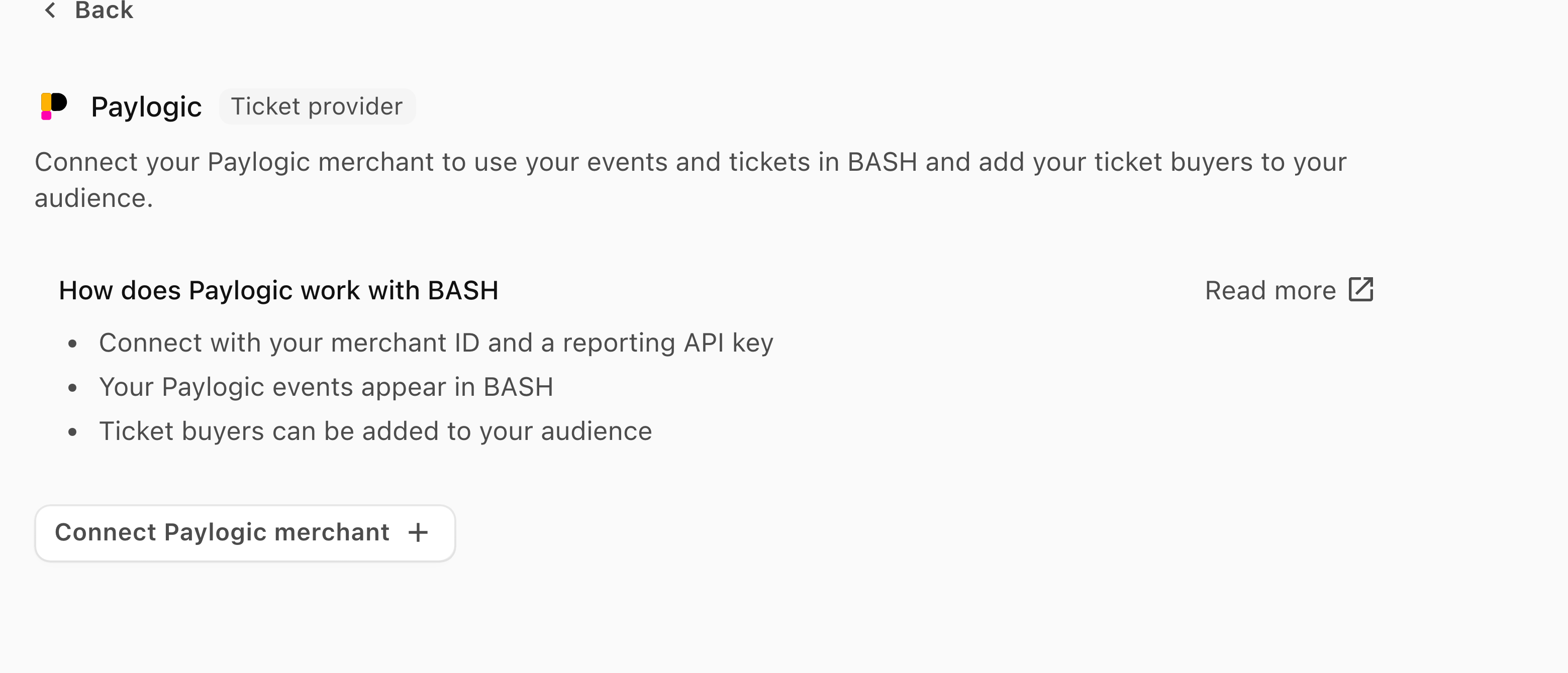
The Add people route brings in the selected Weeztix company or Paylogic merchant's event audiences. This is separate from choosing the provider event and tickets used for a ticket sale. For that task, follow Sell tickets at your event.
- Open Add people, then choose your Weeztix company or Paylogic merchant under Select source.
- If the account is not connected, choose the provider's connection option and follow its setup. For Paylogic, check the Reporting connection. Return to Add people when the account is available.
- Check Automatically add new event audiences. Keep it on to add future events from that account automatically, or turn it off to stop future events being added after this import. This route adds all available current event audiences from the chosen account.
- Choose a community if you also want these event audiences grouped there. This is optional; it does not create a membership.
- Select Add people to prepare the import, then wait for Review. Provider exports can take time to prepare.
- Check the audience counts and answer any permission questions before selecting the final Add people action.
- Check completion and inspect the resulting events and their audiences in BASH.
Ticket holders join their event audience. People recorded by the provider as having signed up for your updates can also become email subscribers. These groups overlap, so the event audience count and subscriber count can differ.
Provider subscriber syncing and event audience syncing are separate. Weeztix can pass updates through its connection; Paylogic checks for new data daily. Do not expect a newly changed provider record to appear immediately.
Automatically imported events stay hidden until you set them up. Turning off automatic new-event additions leaves the events already added updating and keeps the people already imported.
Sync Brevo or Mailchimp lists
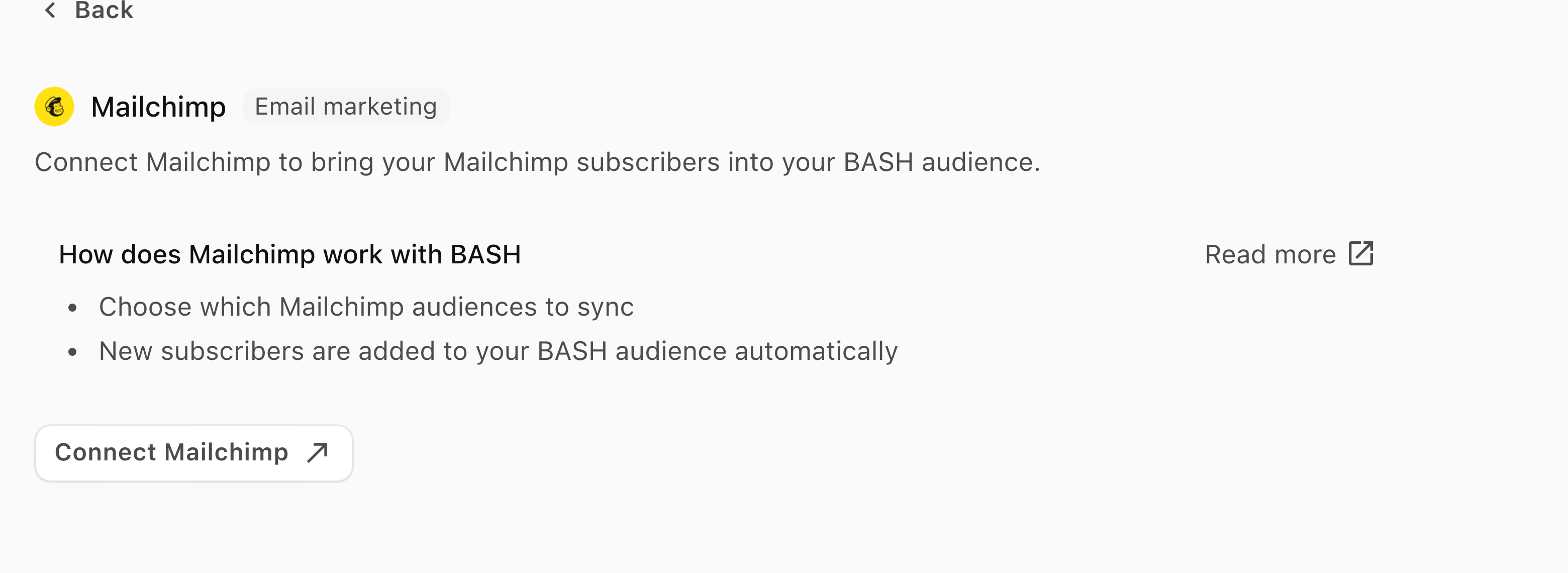
This connection reads selected email lists into your organisation audience. BASH does not send contact edits or subscription changes back to Brevo or Mailchimp. It does not add those contacts to an event audience or member group.
- Open Add people, then choose Brevo or Mailchimp under Select source.
- If prompted, connect the intended provider account and approve the requested access in that service. Return to BASH when the connection is complete.
- Select the lists you want to add. A list marked Already syncing is already connected.
- Select Next to start fetching contacts. You can close the progress window while the initial import continues.
- Open Settings → Integrations, then the provider, to check each list's imported count, Last synced information and status. Check People for the imported contacts.
After the initial import, changes from the selected lists continue updating BASH. Names, phone numbers and addresses can fill missing details. These updates do not create WhatsApp permission.
Contacts can appear in People without being email subscribers. BASH uses the source's subscription information alongside existing BASH preferences. If someone appears in several connected lists, their email eligibility reflects those sources and their recorded choices. Removing a contact from a provider list does not by itself delete their BASH record.
Before sending, check the eligible email and WhatsApp counts in the post's Send step. Publish a post to your audience explains those controls.
Check progress and fix problems
For a file or ticket-provider import:
- Open Audience → People and select Imports. You can also use View details on the import's progress notice when it is shown.
- Open the relevant import to inspect what was added, what already existed and what was skipped.
- If the result could not be confirmed, use Check status before starting another import. Select Retry only when it is offered for that import.
For a Brevo or Mailchimp connection:
- Open Settings → Integrations and select the provider.
- Check the list status: Importing means the initial import is running; In sync means it is active. Stopped syncing needs attention.
- Check Last synced alongside the status. If the connection was lost, select Reconnect and complete the provider's connection process.
- Return to the provider page and check that the lists resume updating.
If no lists appear, check that you connected the intended account. If a source, list or import remains unavailable, use Need more help? Message support below. Include the organisation, provider, list or event name, step reached and error shown. Keep credentials, full contact exports and private access links out of the message.
Stop syncing
For Brevo or Mailchimp, disconnecting stops BASH reading the provider's lists. People already imported remain in People, with their recorded email preferences.
- Open Settings → Integrations and select the provider.
- Open the connected account's options and select Disconnect.
- Read the confirmation, then select Disconnect if you want syncing to stop.
For automatic ticket-provider event additions:
- Open Settings → Integrations and select Weeztix or Paylogic.
- Open the intended account's settings.
- Turn off Sync ticket buyers to stop adding new events automatically. Events already added keep updating, and imported people stay.
Stopping a sync is separate from deleting a person's data. For a data request, follow Personal data, privacy and cookies.