Check VAT and ticket invoices
Open the original buyer’s order, preview its invoice details, and check why an invoice may be unavailable.
Find an original buyer’s ticket order and prepare its invoice in BASH. Ticket invoices, BASH service invoices and payout records describe different parts of a transaction; a payout alone does not provide the full sales and fee breakdown.
Before you start
You need event-management access and must be a manager of the organisation receiving the payment to generate its ticket invoice.
When selling directly through BASH, ticket invoices are available for eligible completed paid orders processed with Stripe. Free, external-provider, unpaid or refunded orders can be ineligible. The order view explains why an invoice is unavailable. For Weeztix or Paylogic orders, use the provider’s invoice process.
Check your organisation’s ticket VAT setting
- Open the organisation’s Settings, then Ticketing.
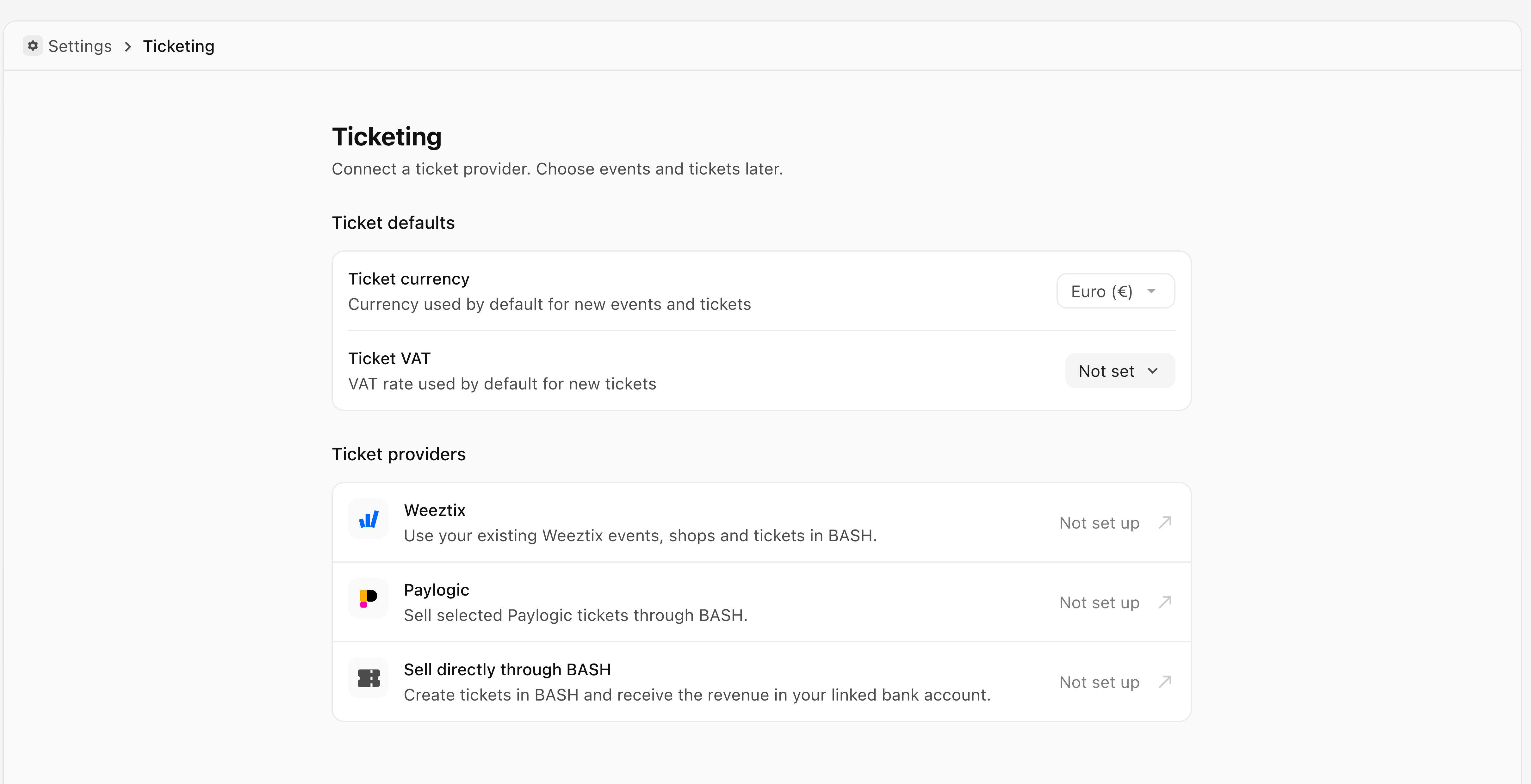
- Under Ticket defaults, select Ticket VAT.
- Check the percentage. This is the default for new tickets.
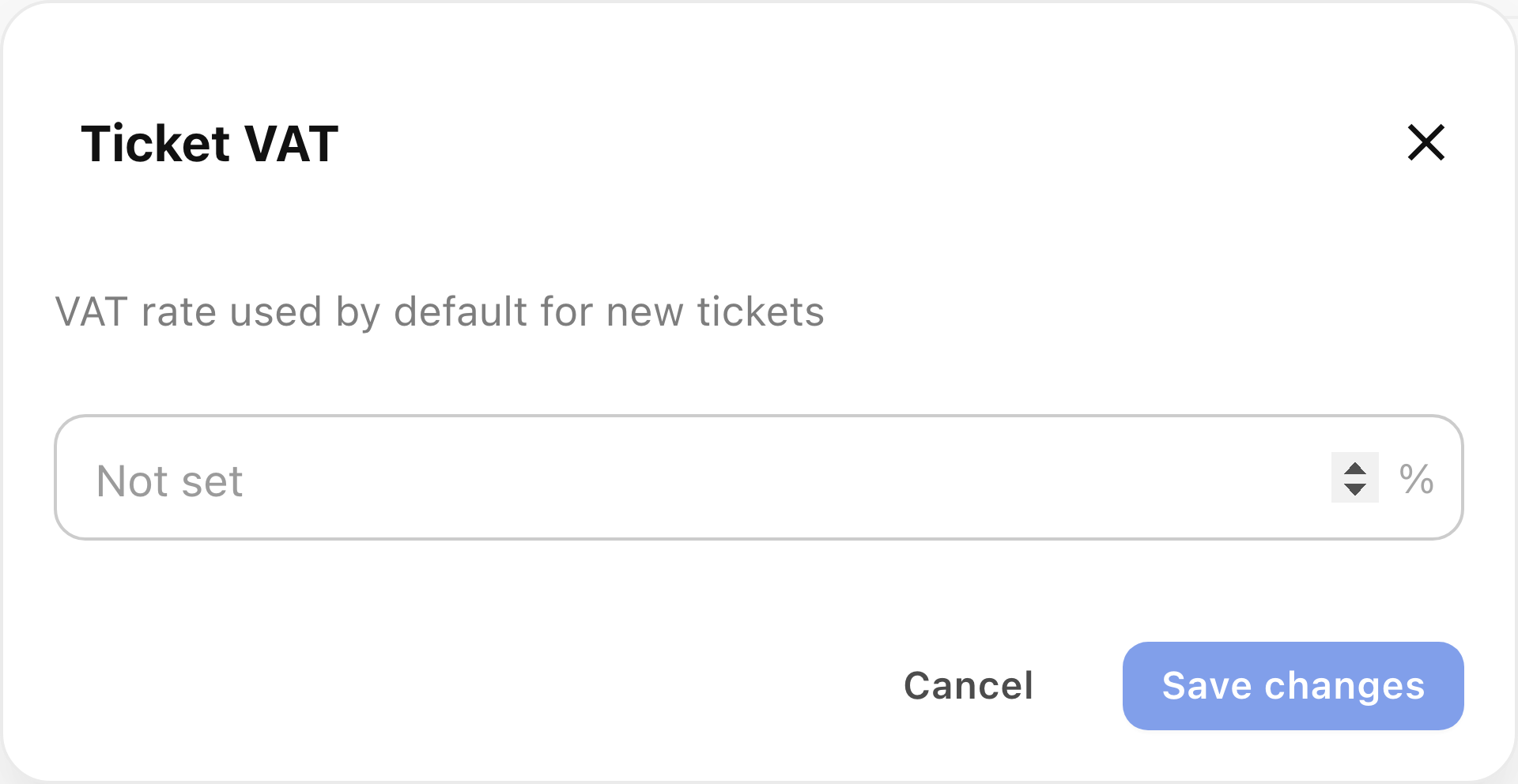
To leave the default unchanged:
- Select Cancel.
To change the default:
- Enter the rate you have confirmed.
- Select Save changes.
- Check the Ticket VAT row for the saved percentage.
The Ticket VAT row shows the saved percentage, or Not set if no default has been entered. Check the relevant order’s actual VAT details when preparing its invoice; do not assume a later default change describes an earlier purchase.
To check fee information:
- Return to Ticketing and open Sell directly through BASH under Ticket providers.
- Check the fee information and payment setup. The information and controls depend on that setup. If the page shows Set up payouts, payment-account setup is still required before accepting ticket payments.
The applicable VAT treatment depends on your organisation, event and the service being supplied. For Dutch sales, consult the Belastingdienst’s VAT guidance and ask your accountant to confirm the treatment. This article does not prescribe a VAT rate.
Find an attendee’s ticket invoice
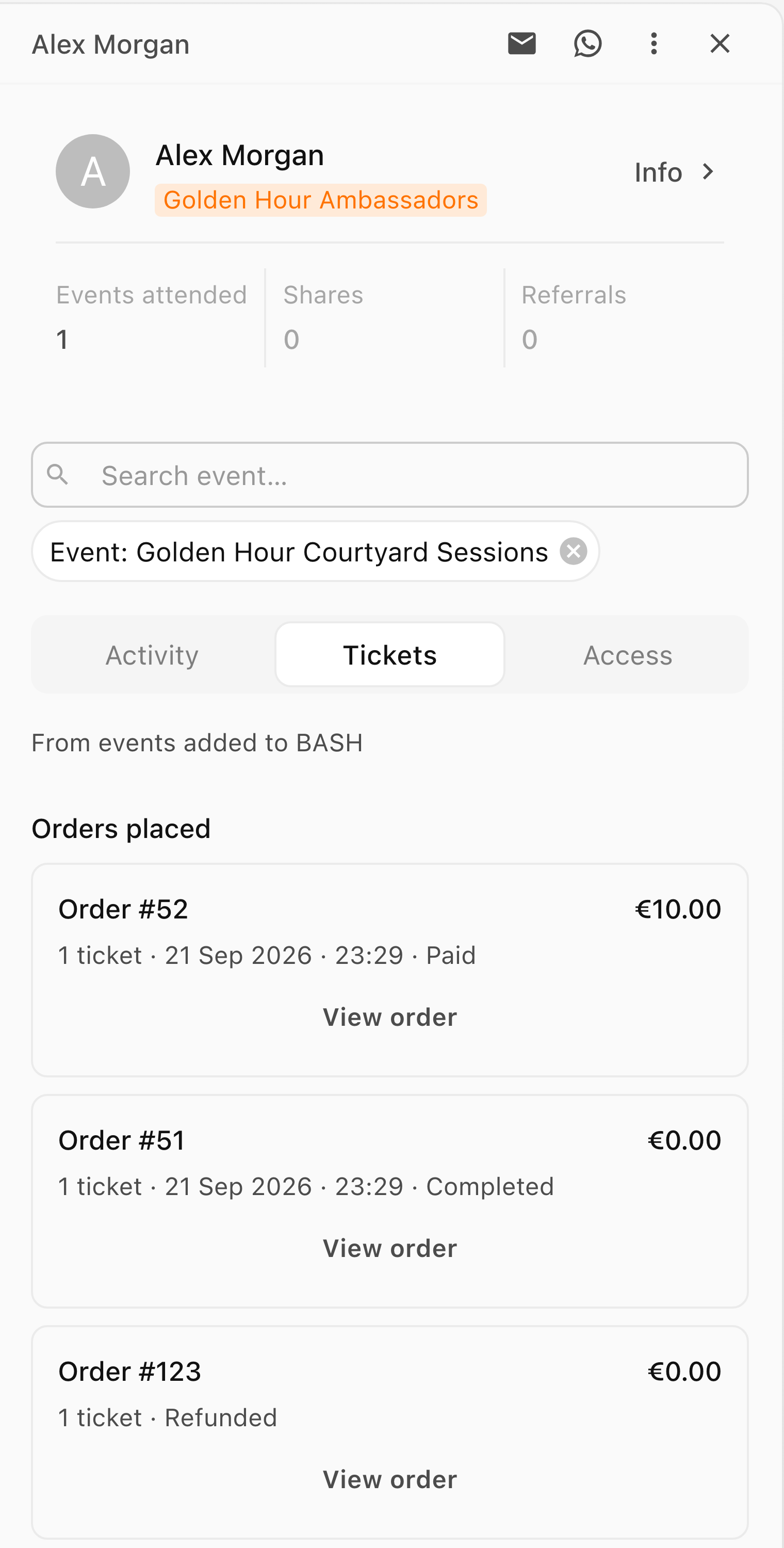
- Open the event’s People page and search for the original buyer. The buyer may be different from the current ticket holder.
- Select the person, then select Tickets in their details.
-
Under the relevant event’s Orders placed, locate the order number and select View order.
-
Check the order’s event, ticket lines and total, then select Generate invoice. If an invoice already exists, the action is View invoice.
-
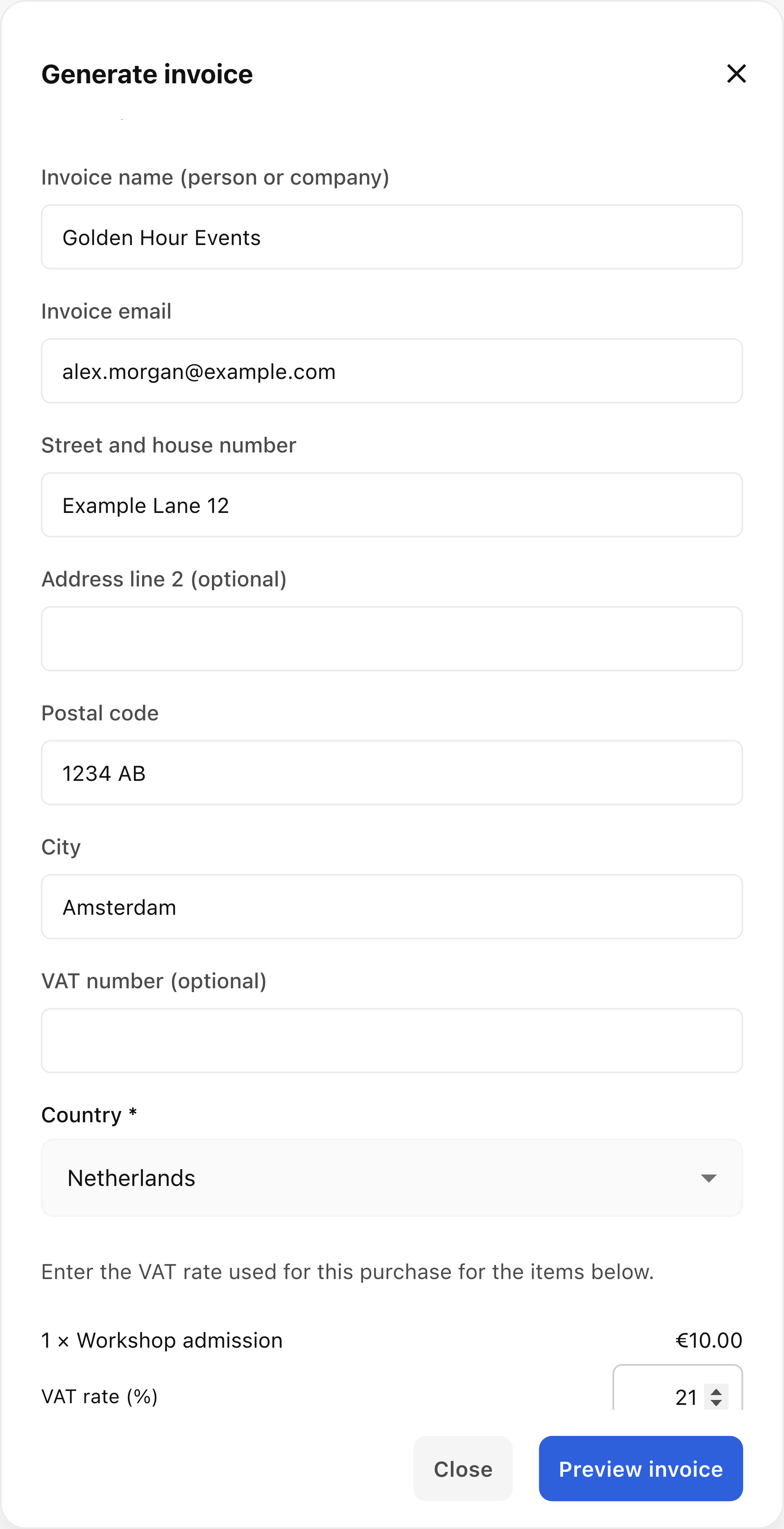
Check Invoice name (person or company) and Invoice email, then complete Street and house number, Postal code, City and Country. Address line 2 (optional) and VAT number (optional) are available if needed.
-
If BASH asks for a missing VAT rate (%), enter the rate used for that purchase for each affected line.
Preview and generate the invoice
- Select Preview invoice.
- Check the billing details, issuer, line amounts, VAT and Total paid.
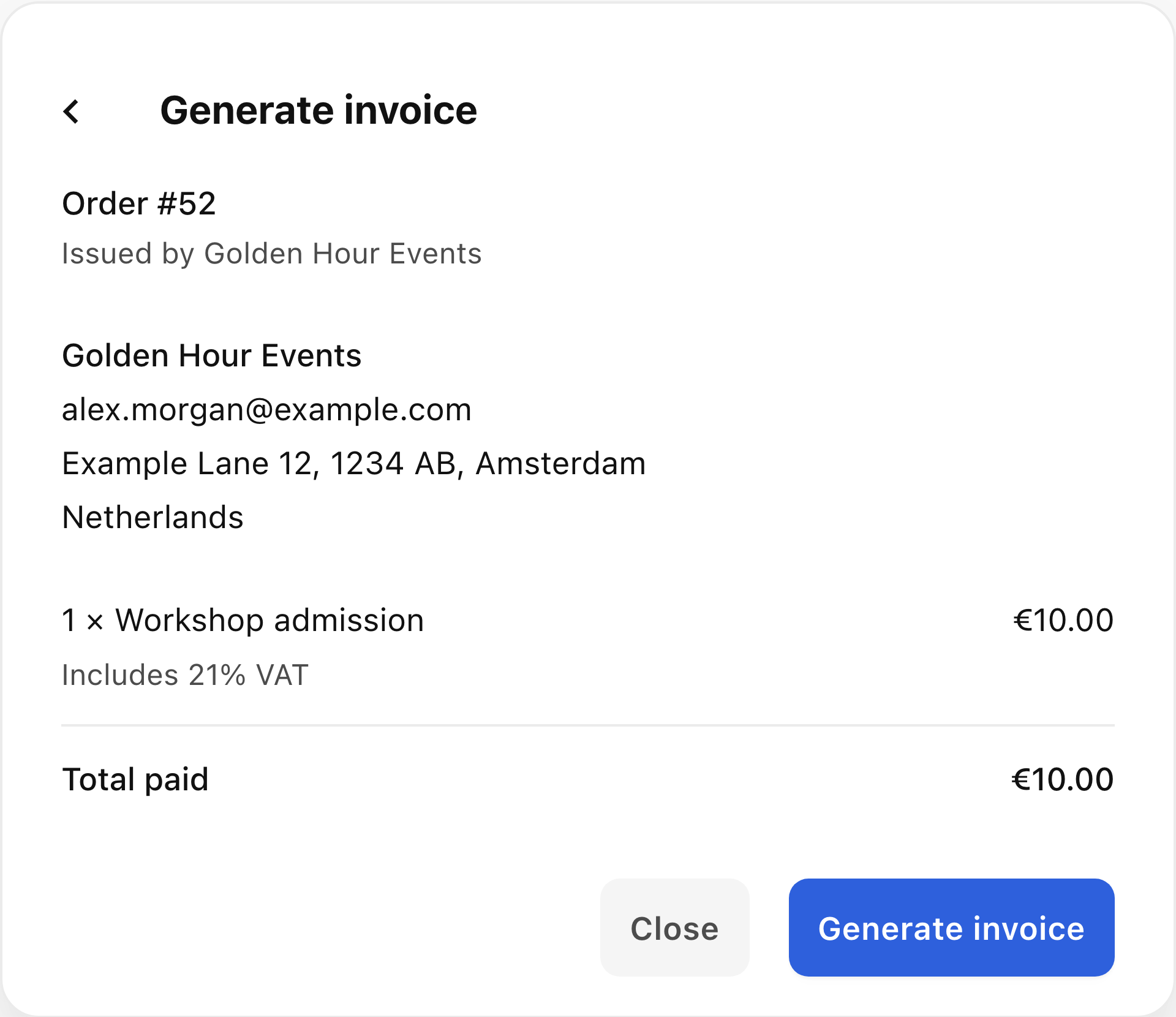
If any details need correction:
- Select Back.
- Correct the details.
- Select Preview invoice again and check the updated preview.
When the preview is correct:
- Select Generate invoice. This starts invoice creation; billing details become fixed once generation starts.
Download or send a completed invoice
When creation completes, use the invoice view to download the invoice:
- Select Download PDF when the PDF is available.
To email the invoice:
- Check the displayed recipient.
- Select Send invoice to email the invoice to that recipient.
Creating an invoice and sending it are separate actions.
If Generate invoice is missing
- Read the reason in View order.
- Confirm that you opened the original buyer’s order.
- Check that your account can manage invoices for the organisation receiving payment.
Do not change an order’s payment or refund state to make it eligible.
If invoice generation reports a problem after starting:
- Keep the saved billing details and follow the error shown.
- If you are unsure whether creation completed, contact support before creating another invoice for the same purchase.
Reconcile sales with payouts
- Compare the same organisation, currency and period across orders, service invoices and payout records.
- Review refunds and adjustments separately.
- Check each document’s issuer and amounts before using it for accounting.
For a missing invoice or discrepancy:
- Select Need more help? Message support below this article.
- Include the organisation, event, order number, step reached and error or amount in question.
- Select Open support message, then review and send the draft.
Keep payment credentials and personal ticket links private.