Export ticket QR codes for an external scanner
Download a CSV of your BASH-issued ticket codes and keep your scanner’s list up to date.
If your scanner can import ticket codes from a CSV file, you can use it to check in people with BASH-issued tickets. You can also check in attendees directly through BASH.
Download the ticket codes
For a simpler check-in, close ticket sales first and export shortly before doors open.
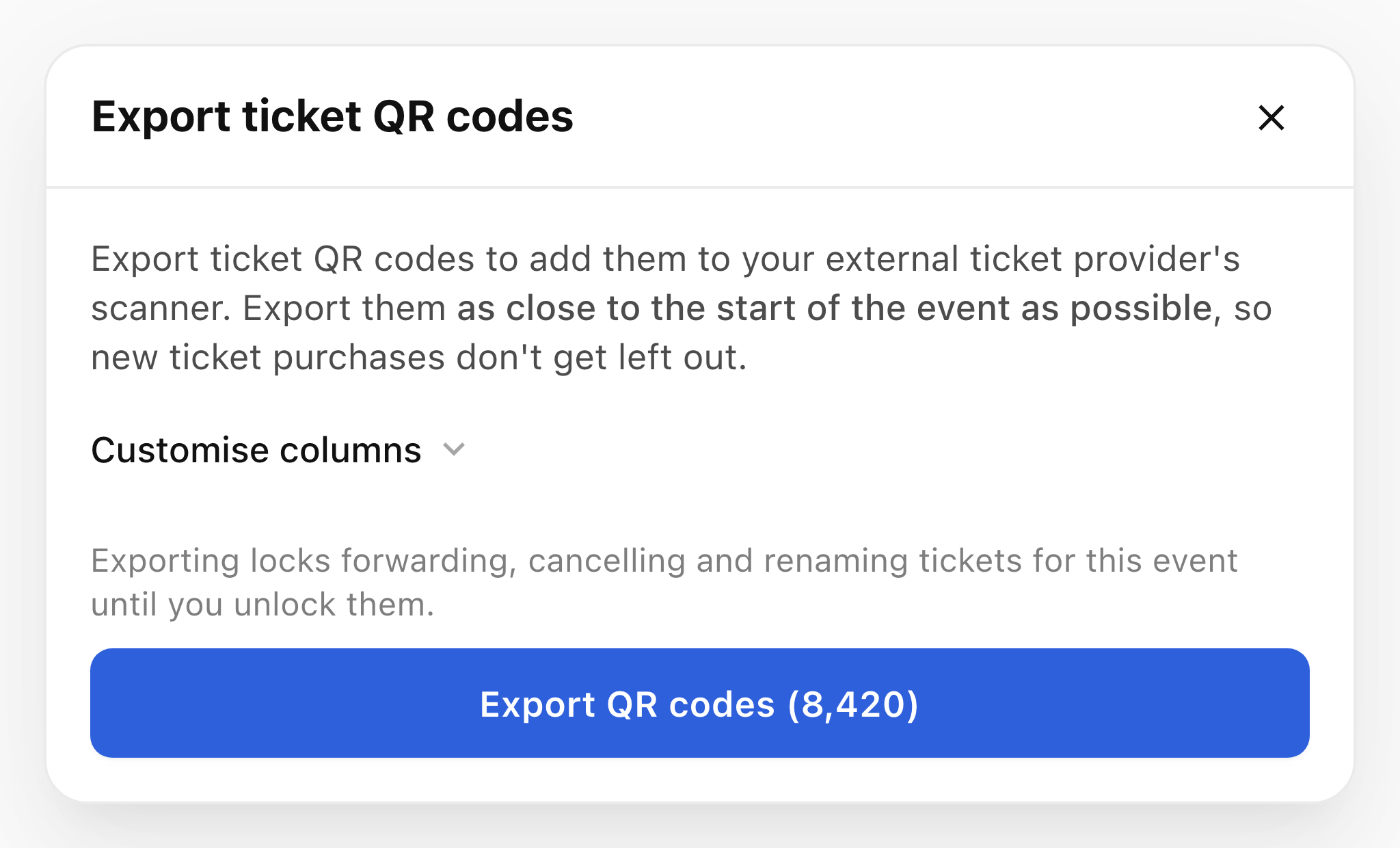
You need permission to manage the event. Downloading locks ticket forwarding, cancellation by ticket holders and renaming until you unlock tickets.
- Open your event and select Tickets.
- Open More options and select Export ticket QR codes.
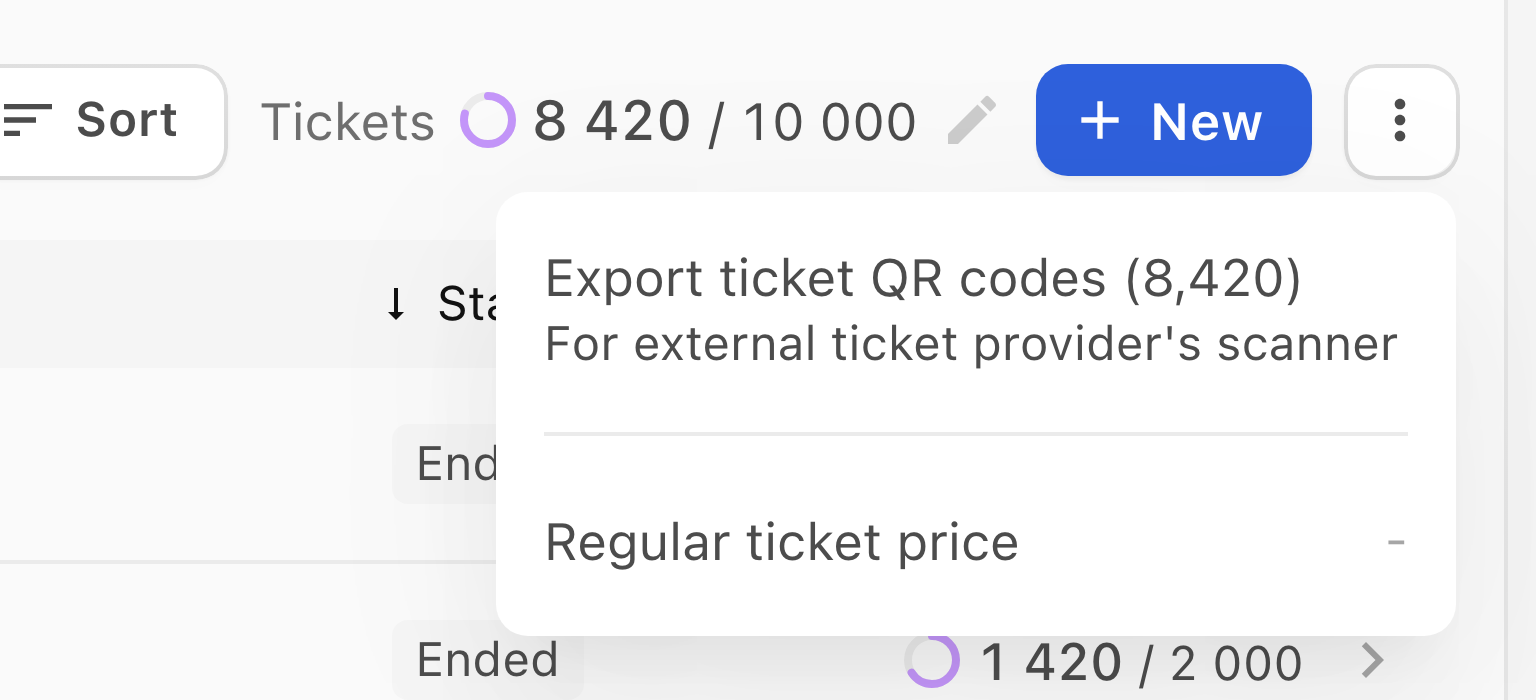
- Select Export QR codes to download the full list as a CSV.
- Import the CSV into your scanner and check that it recognises the codes.
Keep the CSV private. Check-ins made with your external scanner stay in its system.
Choose which columns to include
- In the Export ticket QR codes dialog, open Customise columns.
- Keep the columns your door team needs. Code is always included. Ticket name is selected by default, and you can also include Name, Email or Phone.
- Select Export QR codes to download the CSV.
Update your scanner list
If sales stay open or tickets are removed after you export, check the event banner for changes.
- Select the action for new or removed tickets and confirm in the dialog. If both actions appear, download both files.
- Add the new codes and delete the removed codes in your scanner.
Unlock tickets
- On Tickets, open More options and select Unlock tickets.
- Select Unlock.
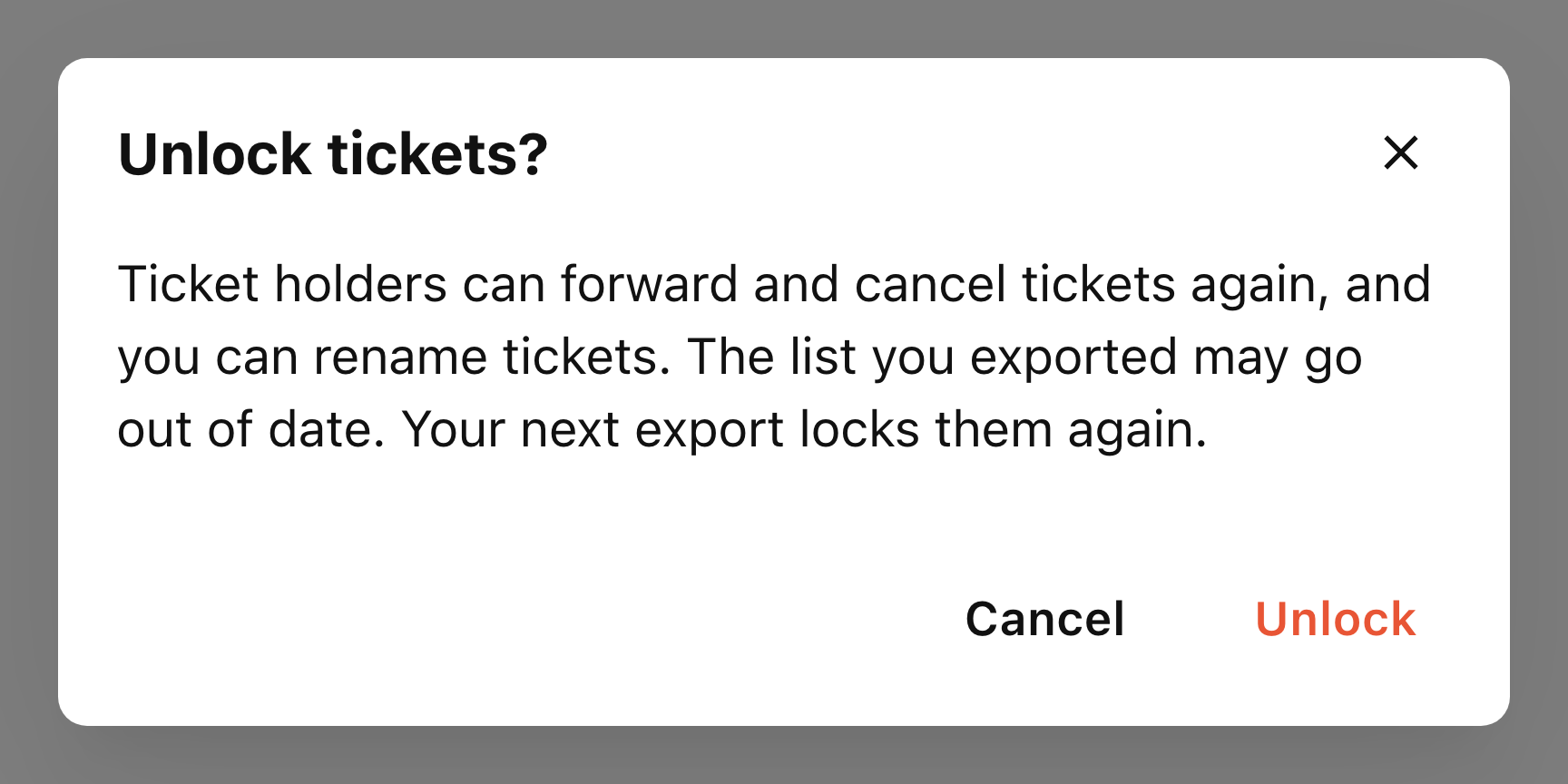
Ticket holders can forward and cancel tickets again, and you can rename tickets. Update your scanner after making changes. Your next export locks tickets again.
If you cannot export ticket QR codes
This option is for tickets issued directly through BASH. It is unavailable for connected-provider events and events that issue tickets using external codes.
- Select Need more help? Message support below this article.
- Include the event and the message you see. Keep ticket codes and attendee files out of the support message.
- Select Open support message, then review and send the draft.