Set up a presale
Create a sign-up form and choose when registered people can buy tickets.
A presale lets people sign up before buying tickets. You choose the sign-up window separately from the ticket sale's opening and closing dates.
Before you start
You need an event and permission to manage its ticket sales. You also need to choose where the event's tickets are managed before adding tickets. See Sell tickets for your event.
Set up the sign-up form
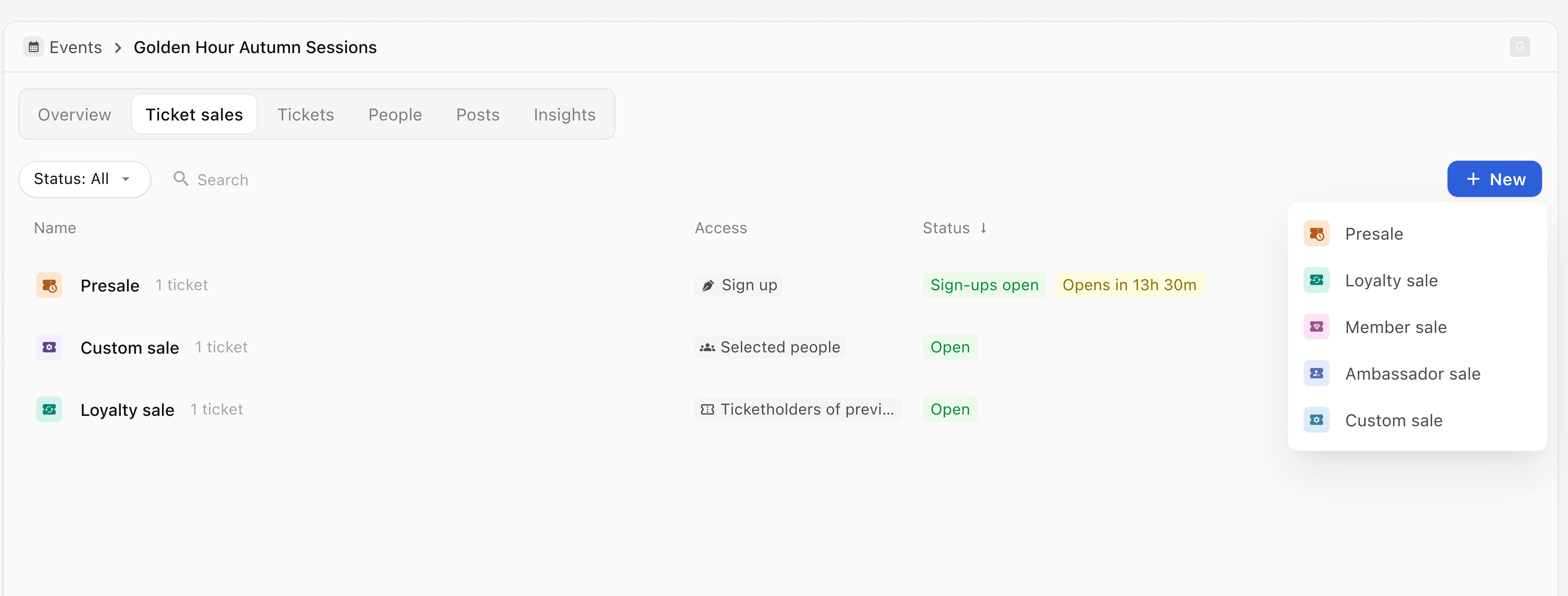
- Open the event from Events, then open Ticket sales.
- Select New, or Create ticket sale if this is the first sale.
- Choose Presale from the dropdown for this event.
- In Sign up, check Form visibility. Choose Public to list the form on your community page, or Link-only to leave it unlisted.
- Check WhatsApp updates and Send confirmation to people who sign up. If confirmation is on, choose its Email and WhatsApp channels. These confirmations are separate from the message announcing ticket access.
- Open Customise form. Check Public title, use Description if needed, and review Personal information and any Custom question.
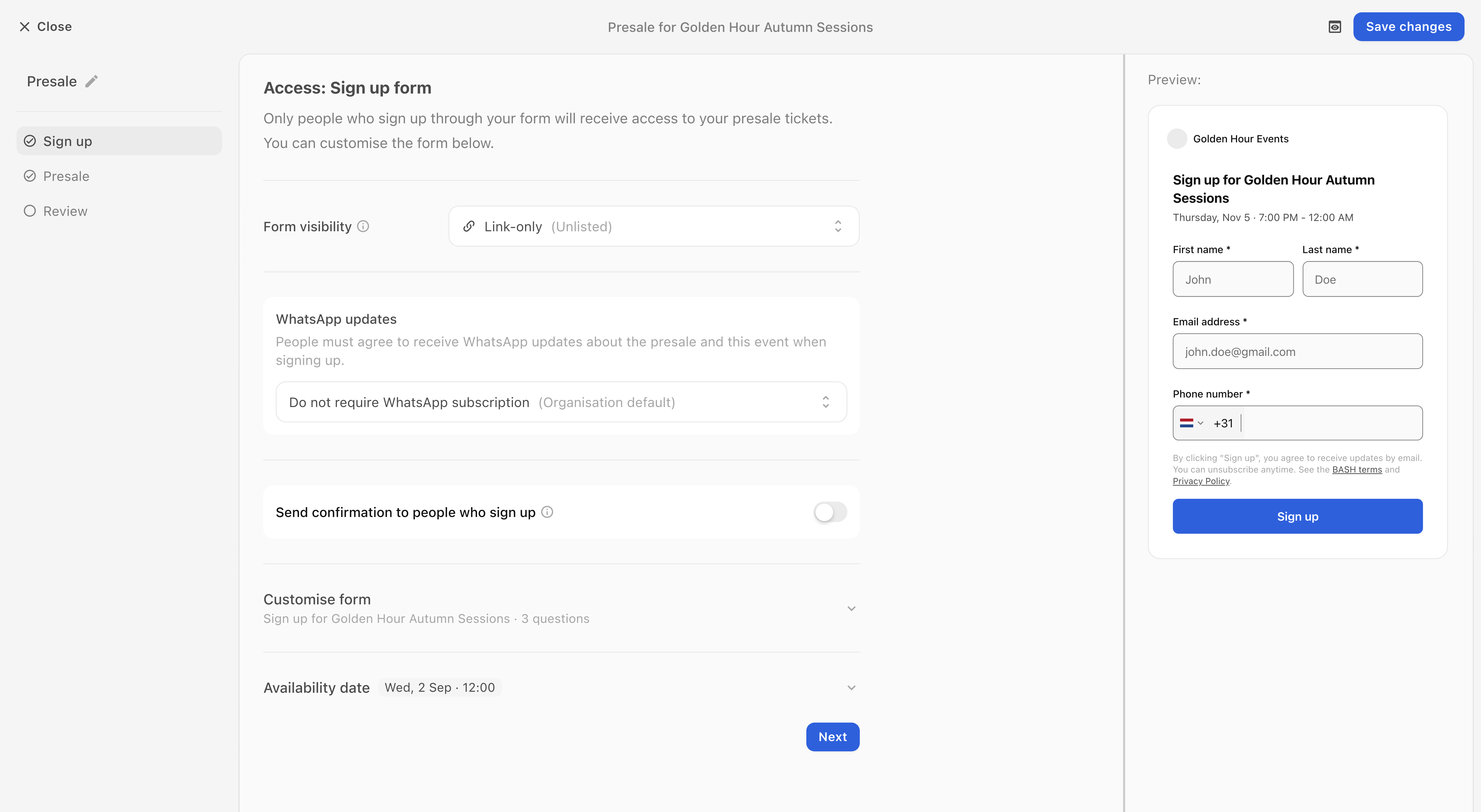
- Open Availability date and set Sign up opens and, if needed, Sign up closes. On save opens the form when you create the presale.
- Select Next to open Tickets.
Add tickets and choose when buying opens
- In Tickets, enter the Sale title.
- Use Add ticket to create a ticket or Select ticket to use an existing event ticket. Finish the ticket editor with Add ticket, or the selector with Done. These changes are saved with the presale.
- Check Personal plus ones and WhatsApp updates at checkout, then select Next.
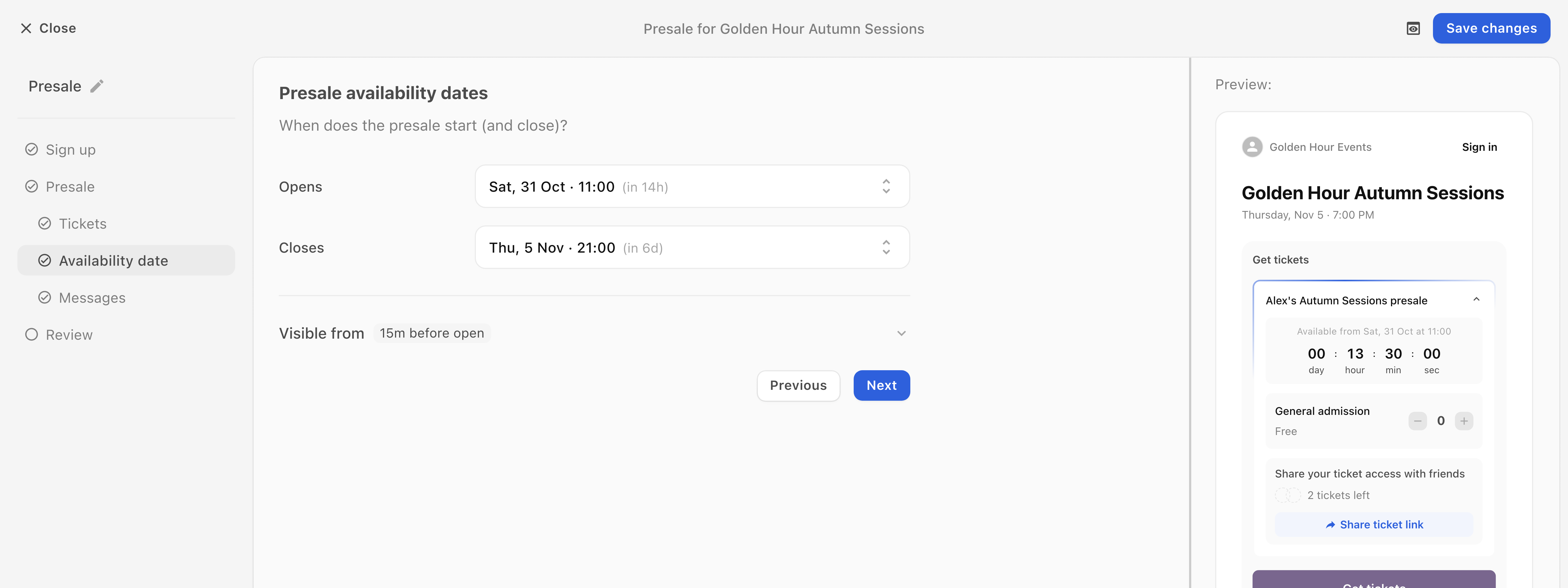
- In Availability date, set Opens and Closes for buying tickets. Check Visible from, which controls when the sale becomes visible before it opens.
- Select Next to open Messages.
- Choose the Email and WhatsApp channels for the access message, check When?, and add a personal message if needed.
- Open Reminder settings and check the closing reminder separately. Turn off both channels for each message you do not want to send.
- Select Next to open Review. Check the timeline, Sign up form visibility, Sign-up confirmation and Presale tickets. Use the relevant Change control to correct a setting.
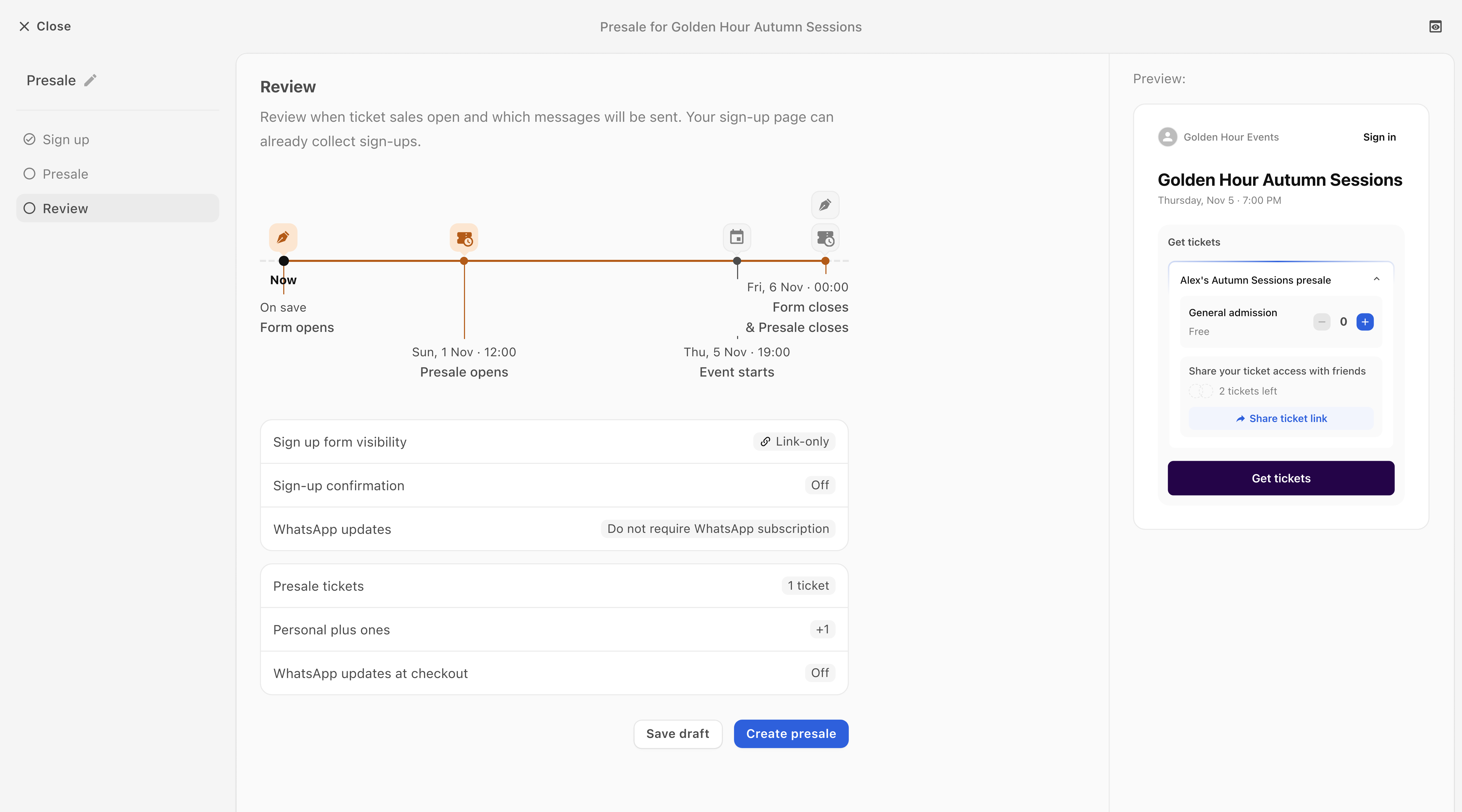
- Check the final button and message settings before creating the presale. Creating it activates the saved schedule; a form set to On save can accept sign-ups immediately. Enabled messages and reminders follow their configured timing. A final button containing and send link and a recipient count also sends access messages to those recipients.
- Select Create presale when you are ready, or Save draft if you are not ready to activate it.
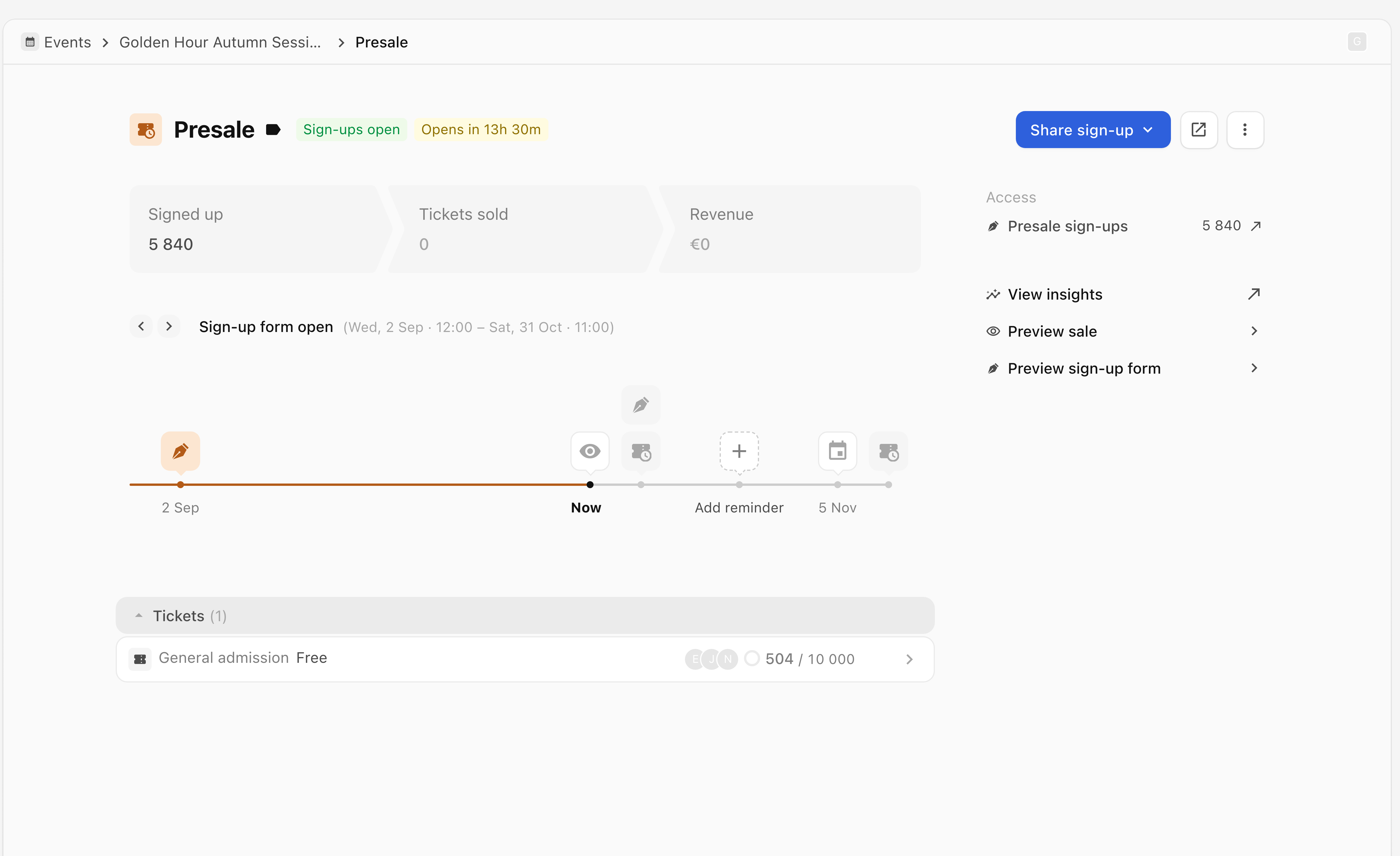
- On the saved presale's detail page, check the timeline for the separate sign-up and sale openings. An open form shows Sign-ups open. Use Share sign-up when you are ready to share the form.
Send preview sends a message to the chosen preview recipients.
If you cannot continue or people cannot buy
- Next is disabled in Tickets: the ticket must be added or selected and its editor completed. The ticket steps above cover both options. Set up ticketing means the event's ticketing setup is still required; follow Sell tickets for your event. Set up later is for creating the form before finishing its ticket setup.
- Registrations are closed: check Sign up opens and Sign up closes in Sign up.
- Someone registered but cannot buy: check the sale's Opens and Closes, ticket availability, remaining stock and Personal plus ones. Visibility and access do not make tickets available before their opening date.
- A message is missing: check the relevant confirmation, access-message or reminder settings. WhatsApp delivery also depends on your WhatsApp connection and recipient eligibility.
Use Need more help? Message support below if these checks do not resolve it. Include your organisation, event, presale name, step reached and error shown. Do not include private access links or verification codes.